Build your first Studio agent with a knowledge source + topic
Go beyond answering questions — build a real agent with designed conversations and structured logic, the kind you ship to hundreds of people.
Stage: Copilot Studio · For: Maker · Level: Advanced · Time: 45 min
Which harness? This one uses the standard harness
Every Copilot Studio agent runs on a harness — the engine underneath it. This walkthrough builds on the standard harness: you author the topics and rules, the conversation is predictable, and for Microsoft 365 Copilot–licensed users it's covered inside Microsoft 365 channels (no extra credits). That makes it the right, lowest-cost choice for structured, rules-based flows.
Reach for the GitHub Copilot harness instead when the job is a complex, multi-step process rules can't script cleanly: it reasons through the whole goal on its own, retries and finds another path when a step fails, works directly across your Word, Excel, PowerPoint, and PDF files, and keeps context with skills and memory — so you describe the outcome instead of wiring every branch. That power is why it's the engine to grow into. The honest tradeoff: it bills Copilot Credits for all usage (creation and runtime) and a Microsoft 365 Copilot license never covers it. Compare the engines · estimate the net cost.
When to use this
This is the low-code destination. Everything before this — using Chat, delegating to agents, building a declarative agent — was the on-ramp. Copilot Studio is the pro-grade, low-code builder where you make production agents.
You're here because your Stage 4 declarative agent hit a ceiling: you need more than "answer from docs." You want a designed conversation — an agent that grounds on knowledge and drives a topic (a structured flow with a clear happy path), so it does the right thing reliably, not just plausibly. Studio gives you topics, richer grounding, testing, ALM, and a real publish-and-govern story.
What you'll need
- Copilot Studio access (a Power Platform environment you can build in)
- A knowledge source — a SharePoint site, a set of docs, or a public URL the agent grounds on
- A target to publish to later (Teams and/or a website)
- A clear use case with one happy-path conversation you can name
Try it now — the design
Before you click anything, outline the agent. Studio rewards a plan. Use this as your design prompt (in Copilot Chat, or just on paper):
Outline a Copilot Studio agent for [use case]. Give me:
- The knowledge sources it should ground on
- 3 key topics (the structured conversations it needs to handle)
- The happy-path conversation for the most important topic, turn by turn
Why this works: a Studio agent is knowledge + topics, not just knowledge. Naming your 3 topics and writing the happy path first means you build with intent instead of wiring trigger phrases at random. The single biggest first-build mistake is skipping this and building topic-by-topic with no map.
Step by step
- Create the agent in Copilot Studio. Give it a name, description, and instructions — the same persona discipline from Stage 4 carries over.
- Add your knowledge source. Point it at the SharePoint site / docs / URL. Test a question in the built-in chat to confirm grounding works before you add structure.
- Build your first topic. Create a topic for your most important flow — set its trigger phrases, then lay out the happy-path conversation node by node (questions, conditions, messages). This is the step Agent Builder couldn't do.
- Test in the Test pane. Walk the happy path. Then deliberately go off-script to see how it falls back to knowledge — tighten trigger phrases and nodes until it behaves.
- Publish to a channel. Publish the agent and connect it to Teams (and/or a website) so real users can reach it. You've shipped, not just built.
Screenshots
Captured live in Microsoft Copilot Studio (Contoso environment). The product UI moves fast — if what you see differs, trust the numbered steps above, which we keep current.
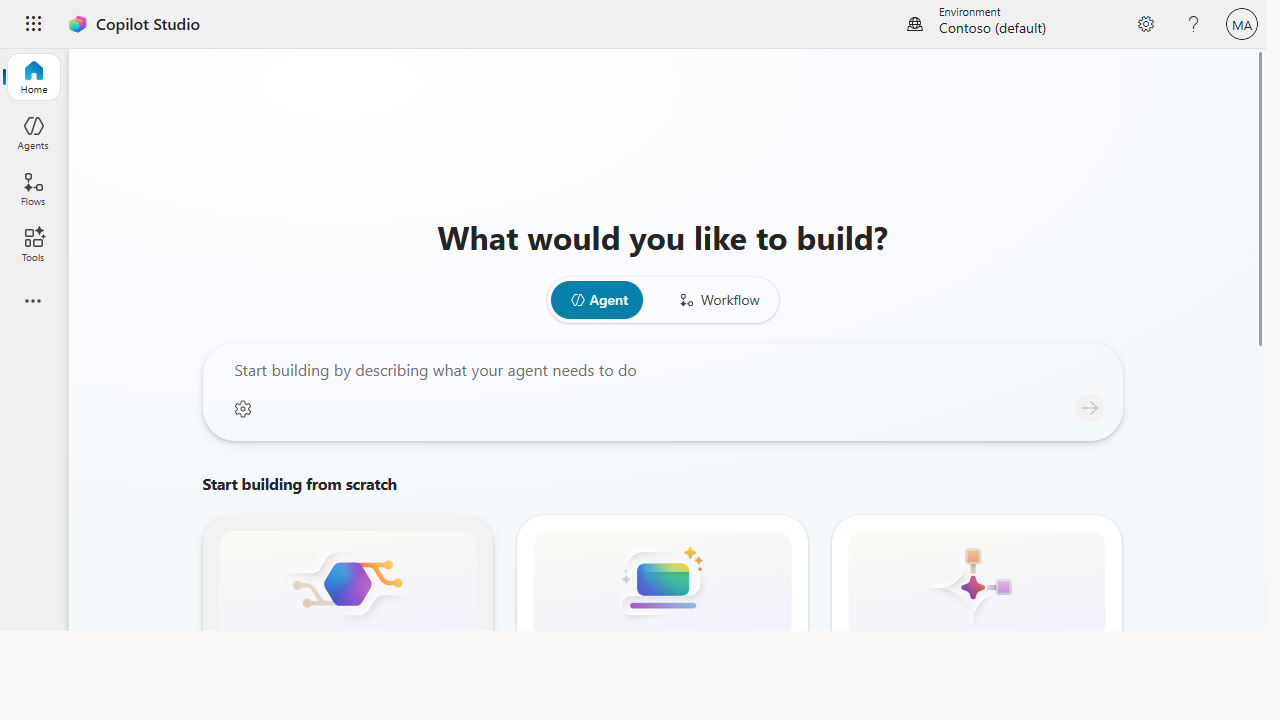 Copilot Studio is the pro-grade builder — describe the agent, or start from scratch with an Agent, computer-using agent, or workflow.
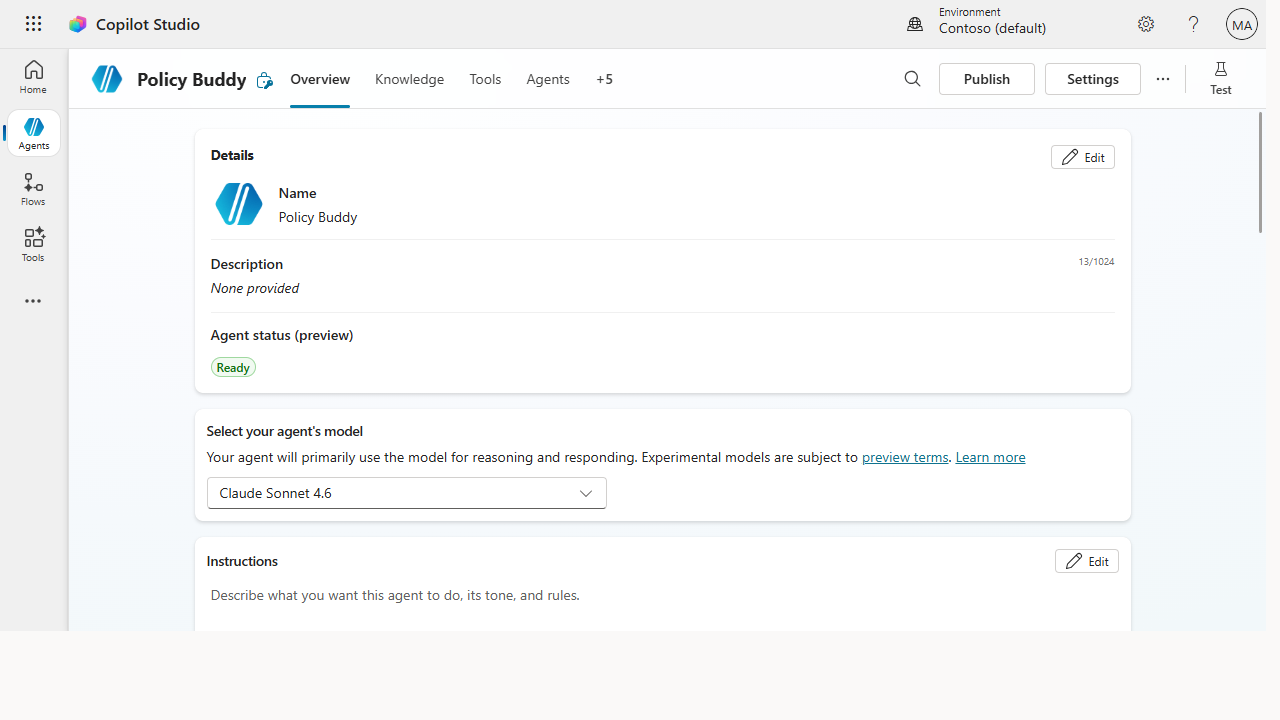 The agent workspace: Overview, Knowledge, Tools, plus a built-in Test pane, a model selector, and the same instructions discipline from Stage 4.
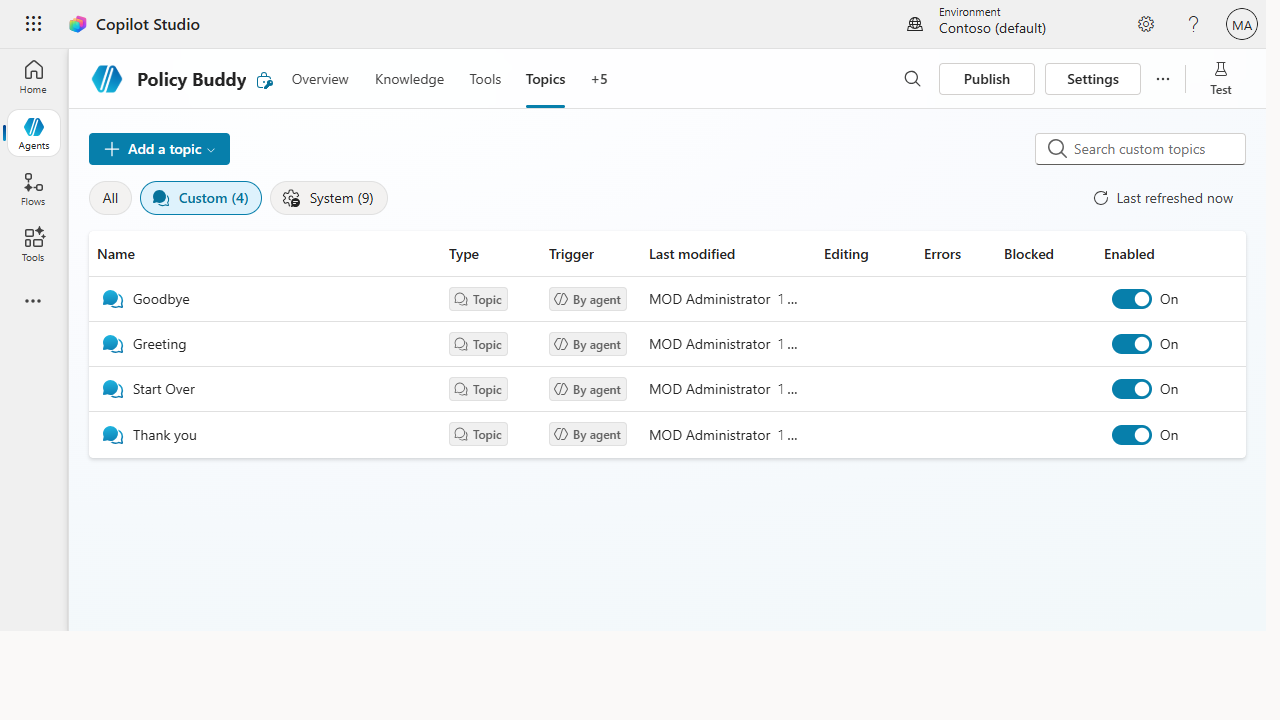 Topics are the step Agent Builder couldn't do — structured conversations with their own triggers and a designed happy path.
Make it better
Your first Studio agent is the foundation. These are the natural next builds in this stage: - Connect an action. Let the agent do things — look up an order, create a ticket — via a connector or action, not just answer. - Add a tool / MCP integration. Extend the agent with external tools for richer, real-world tasks. - Govern and monitor. Once it's live, watch analytics, set guardrails, and manage versions with ALM.
📚 Learn more. Start with the Copilot Studio docs (get started → build → test → publish → govern), book the free hands-on Copilot Studio in a Day workshop, keep the Copilot Studio Resources hub bookmarked, and follow the product team's Copilot Studio YouTube channel.
Watch out for
- Topics need maintenance. A designed conversation is powerful but isn't fire-and-forget — trigger phrases drift and flows need pruning. Plan to revisit.
- Don't over-build the first one. One knowledge source + one solid topic that you ship beats five half-finished topics that never publish. Get it live, then extend.
- Governance is part of "done." Before releasing to a wide audience, line up the publish + ALM + monitoring checklist — shipping to 500 users is a different bar than a demo.
Where this leads (going deeper)
You've reached the low-code destination — and it has depth. From here the journey is within Studio: wire up connectors and actions so the agent takes action, add MCP / tool integrations, nail the publish + governance story, and measure ROI to justify and expand the program. When low-code hits its ceiling, Microsoft Foundry (Stage 7) is the pro-code frontier beyond.
Next (within Stage 6): Connect an agent to a system with a connector / action
Related
- Agent Builder → Build a team-knowledge agent over a SharePoint site — the no-code agent you outgrew to get here
- Studio → Govern and monitor agents at scale
- Stage 6 Resources: see
RESOURCES.md→ Copilot Studio
Thanks — glad it helped. Spotted something to improve anyway? Suggest it →
Sorry this didn't land. Tell us what broke → so we can fix that rung of the ramp.
Found an issue or want to suggest an improvement? Open a GitHub issue · Star on GitHub