Add an MCP tool integration to your Studio agent
Knowledge lets an agent answer; tools let it act. Wiring an MCP server into your Studio agent turns "here's what the docs say" into "done — I just looked it up in the live system and made the change."
Stage: Copilot Studio · For: Maker · Level: Advanced · Time: 20 min
Works on any harness — cost and coverage differ
This is a platform skill that applies whichever harness powers your agent. Keep one thing in mind: the standard and chat harnesses are covered by a Microsoft 365 Copilot license inside Microsoft 365 channels, while the GitHub Copilot harness bills Copilot Credits for all usage and a license never covers it. Compare the engines · estimate the net cost.
When to use this
Your agent answers questions well, but users keep asking it to do things — "check the order status," "create the ticket," "pull the current inventory." Grounding on documents can't do that; it only knows what was written down. An MCP (Model Context Protocol) tool integration connects your agent to a live system through a standard interface, so one MCP server can expose a whole set of actions the agent calls on demand. It's the move that takes an agent from informative to operational — the same pattern behind real-world demos that connect Studio agents to back-office systems like supply chain and finance.
This is a maker's leverage point. One well-built MCP connection unlocks every tool that server exposes.
What you'll need
- A Copilot Studio agent you can edit and the rights to add tools / actions
- An MCP server endpoint that exposes the operations you want (and its auth details)
- A clear list of the actions you want the agent to take — and which should require confirmation
Try it now — the prompt
Before wiring anything, design the tool surface so you connect the right operations:
I'm connecting a [supply chain] agent to an MCP server. List the 5 tools it
most likely needs, and for each: what it does, what inputs it takes, what it
returns, and whether it should run automatically or ask the user first.
Why this works: it forces a tool-by-tool spec — name, inputs, outputs, and a safety call on confirm-vs-auto — before you touch configuration. The number-one way an agent-plus-tools goes wrong is a write action firing when it should have asked; deciding that up front is how you avoid it.
Step by step
- Register the MCP server as a tool source. Add the server endpoint to your agent and authenticate it. One connection makes every tool that server exposes available to the agent.
- Select and describe the tools. Pick the specific operations to expose and give each a clear description — the agent uses that text to decide when to call it, so vague descriptions cause wrong calls.
- Set confirmation on write actions. Read actions can run freely; anything that changes a system should pause for the user. Gate the writes — that single setting prevents most "it did what?" moments.
- Test the happy path and a refusal:
Screenshots
Captured live in Microsoft Copilot Studio (Contoso environment). The product UI moves fast — if what you see differs, trust the numbered steps above, which we keep current.
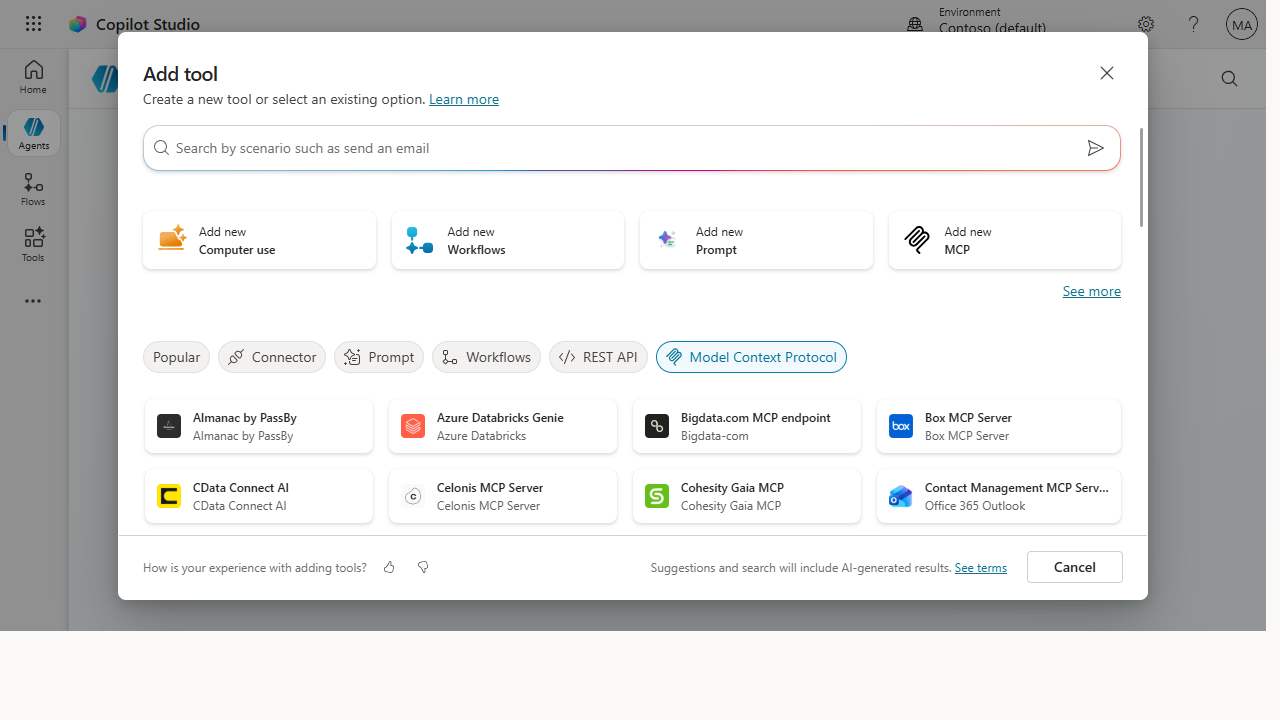 Filter the tool gallery to Model Context Protocol — connect an existing MCP server or add your own, and the agent gains every action that server exposes.
Make it better
A tool connection gets sharper with discipline: - Start with read-only. Ship the lookups first, prove they're reliable, then add write actions once you trust the agent's judgment about when to call them. - Borrow from the samples. The Microsoft-owned Studio sample repos show working tool and connector patterns — adapt a proven one rather than wiring from a blank canvas. - Name tools for what they do. "get_order_status" beats "tool3." The agent picks tools from their names and descriptions, so clear naming is functional, not cosmetic.
📚 Learn more. The Copilot Studio official docs cover building, testing, and connecting agents end to end, and the Copilot Studio & agent samples give you Microsoft-owned starting points for tool and connector integrations.
Watch out for
- Write actions need a human gate. An agent that creates, updates, or deletes without confirmation is a liability. Default writes to "ask first" until you've proven the trigger logic.
- Bad descriptions cause bad calls. The agent can't see your intent — only the tool's description. A fuzzy description means the agent fires the wrong tool at the wrong time. Write them precisely.
- Mind auth and data scope. The agent acts with whatever permissions the connection carries. Scope the MCP server's access tightly and loop in IT on what data and operations are appropriate to expose.
Where this leads (the ramp)
An agent that can act is only valuable once it's in users' hands — and acting agents raise the stakes on how you release. A tool that changes real systems needs a real publish-and-governance checklist before it reaches 500 people. That's the next step: ship it safely.
Next: Copilot Studio → Publish your agent to Teams and the web
Related
- Copilot Studio → Connect an agent to a system with a connector / action — the connector cousin of MCP tools
- Copilot Studio → Build your first Studio agent with a knowledge source + topic — the agent you're extending
- Stage 6 Resources: see
RESOURCES.md→ Copilot Studio
Thanks — glad it helped. Spotted something to improve anyway? Suggest it →
Sorry this didn't land. Tell us what broke → so we can fix that rung of the ramp.
Found an issue or want to suggest an improvement? Open a GitHub issue · Star on GitHub