Catch up on a long email thread in seconds
Open a 40-message thread and know exactly where things stand — and what's being asked of you — in under a minute.
Stage: Copilot Chat · For: End user, Manager · Level: Starter · Time: 5 min · Saves: ~15 min vs. manual
When to use this
You come back from two days out of office and there's a thread with 38 messages about a decision you're supposed to weigh in on. Or someone CC'd you at message 15 and expects you to have context. Or it's 4 PM on Friday and the thread just got a "final decision?" nudge.
Copilot in Outlook and Microsoft 365 Copilot Chat reads the entire thread and distills it to what matters for you — the decision state, the open questions, and your specific action item if there is one.
What you'll need
- M365 Copilot license — Copilot in Outlook or Microsoft 365 Copilot Chat
- The email thread open in Outlook, or pasted into Microsoft 365 Copilot Chat
Try it now — the prompt
In Outlook, open the thread and use the Copilot button in the reading pane. Or copy the thread into Microsoft 365 Copilot Chat and paste:
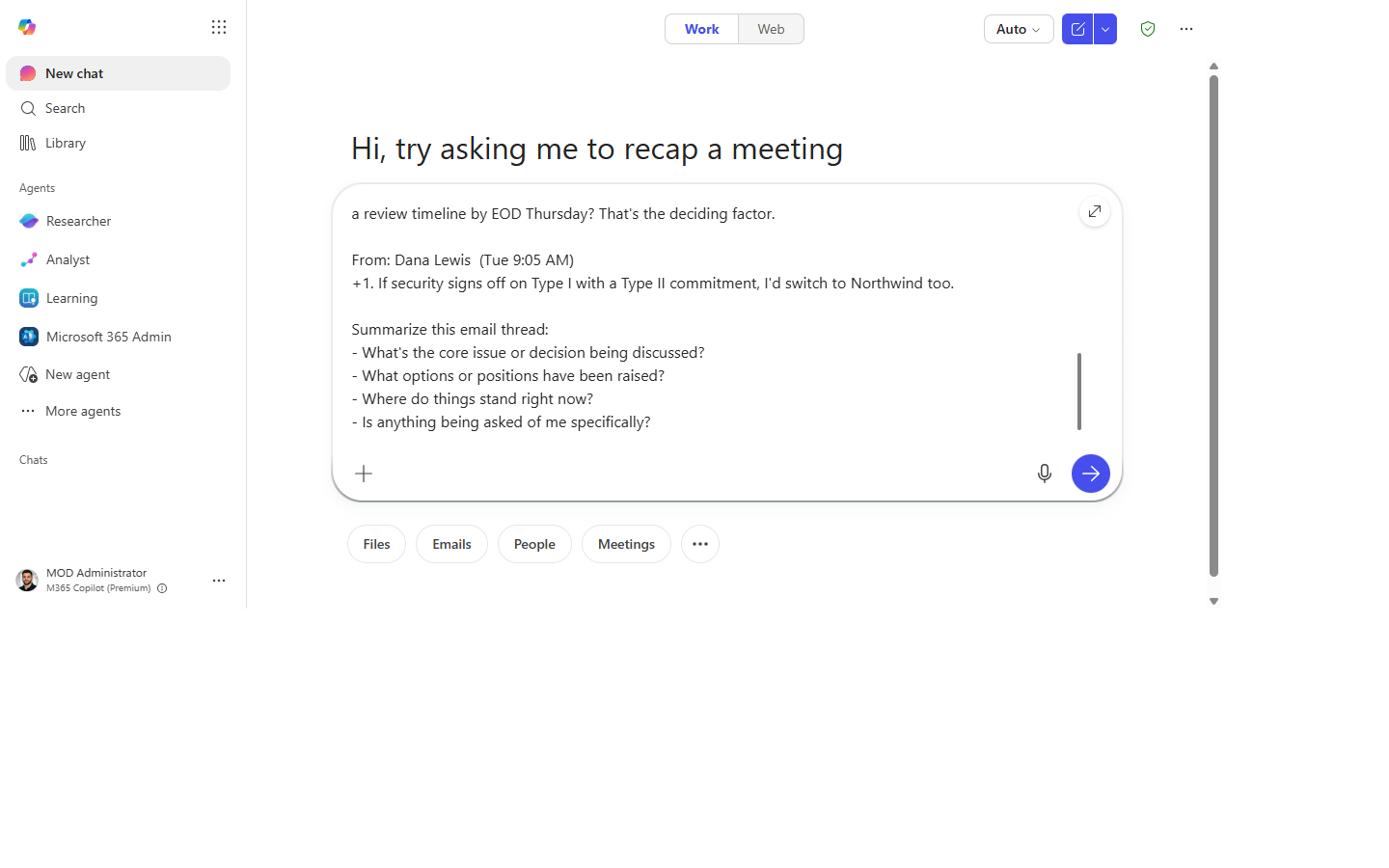
Summarize this email thread:
- What's the core issue or decision being discussed?
- What options or positions have been raised?
- Where do things stand right now?
- Is anything being asked of me specifically?
Why this prompt works: Four specific questions force a structured answer rather than a paraphrase. The last question makes it personal — Copilot will scan for your name or role and flag anything directed at you.
Step by step
- Open the thread in Outlook. Click the Copilot icon in the reading pane — it opens a summary panel automatically.
- Type or paste the prompt. In Microsoft 365 Copilot Chat, paste the thread body directly if you don't have Copilot in Outlook.
- Read the summary. Pay particular attention to "where things stand" — it often reveals the decision was already made without you realizing.
- Dig deeper if needed:
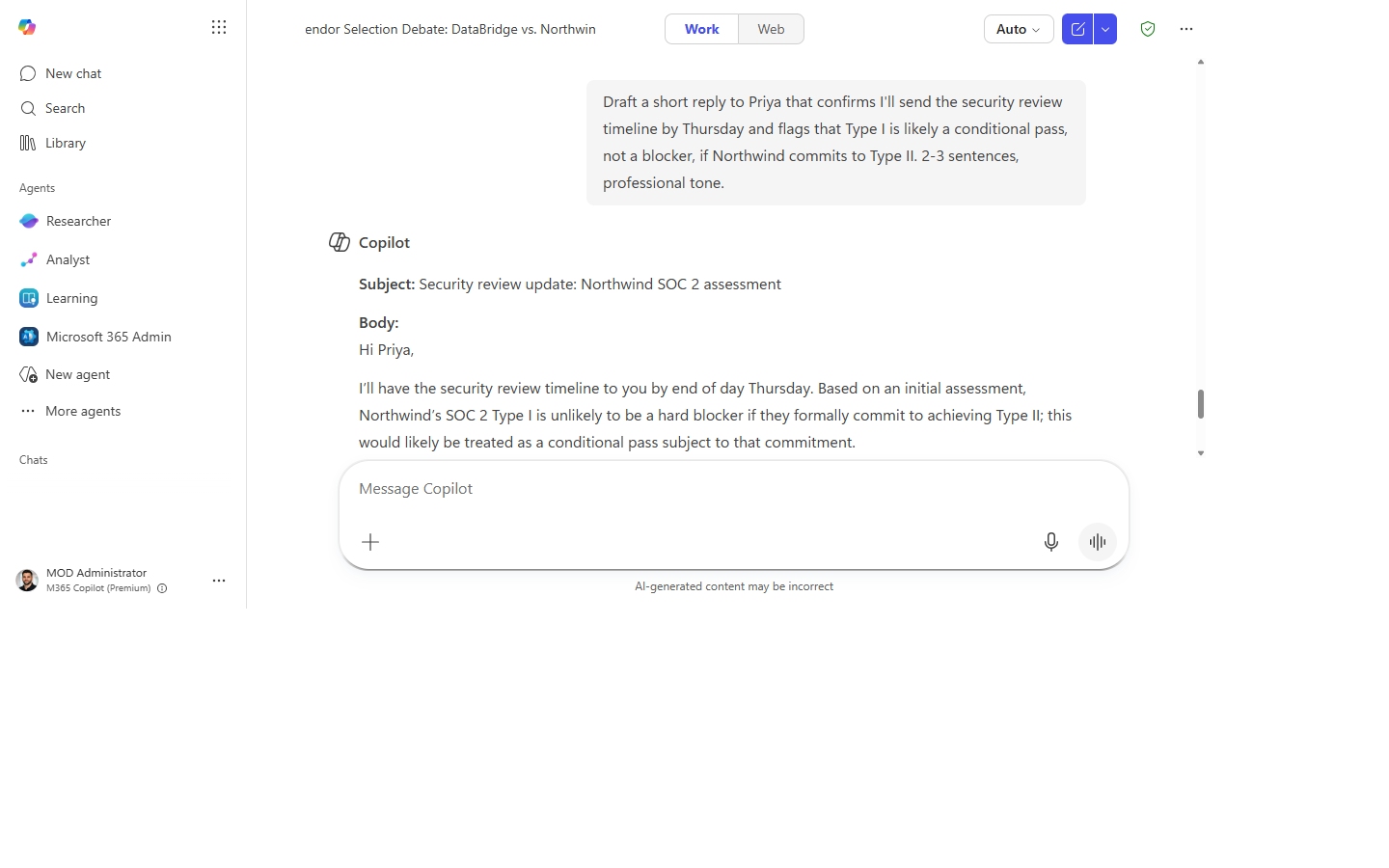
- Reply from the summary. If you need to respond, follow up with:
Screenshots
Captured live in Microsoft 365 Copilot Chat (Work mode). The product UI moves fast — if what you see differs, trust the numbered steps above, which we keep current.
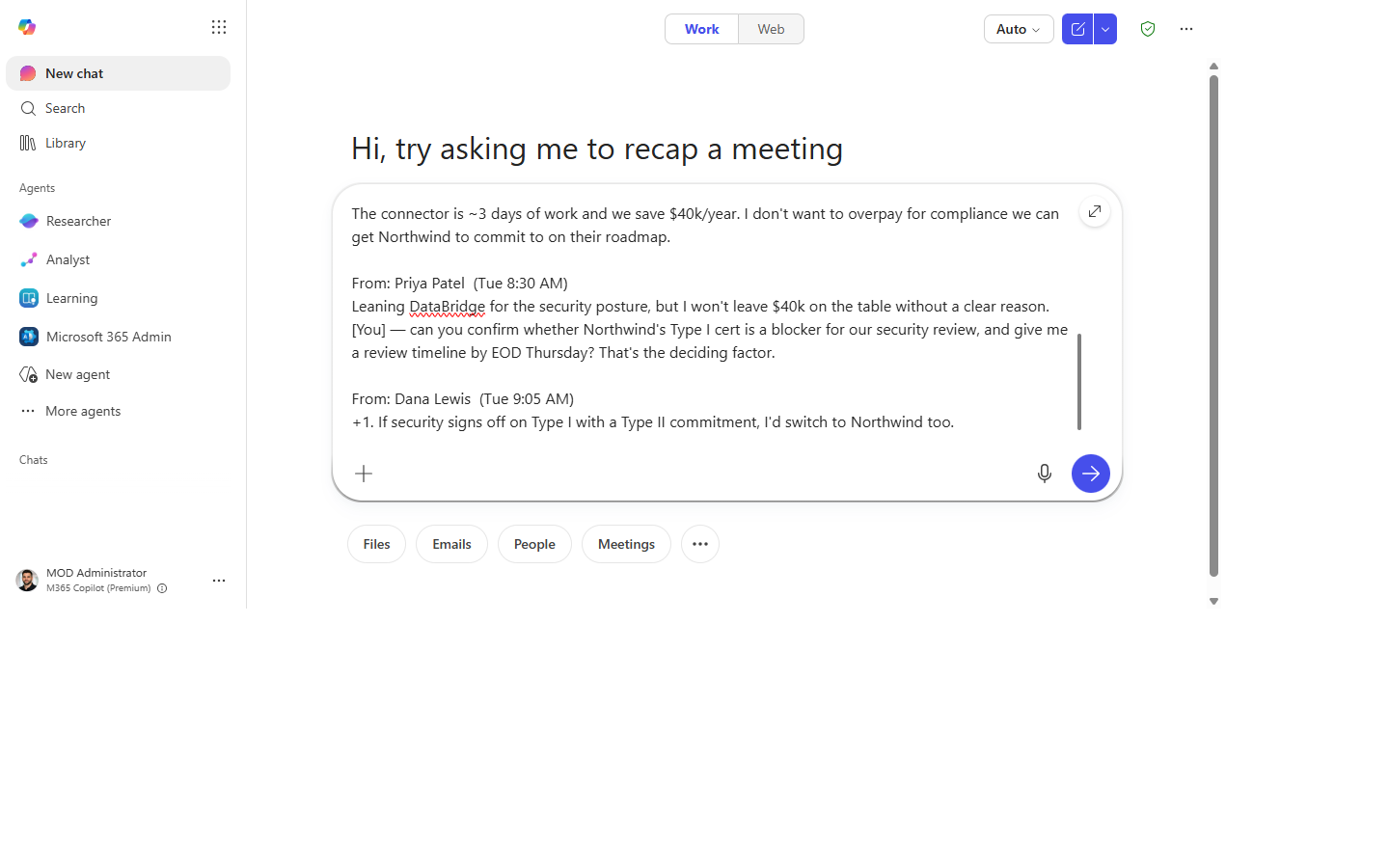
1. Thread ready in Copilot Chat. The email thread open (or pasted into the composer).
2. Prompt entered. The four-question summary prompt typed into the composer.
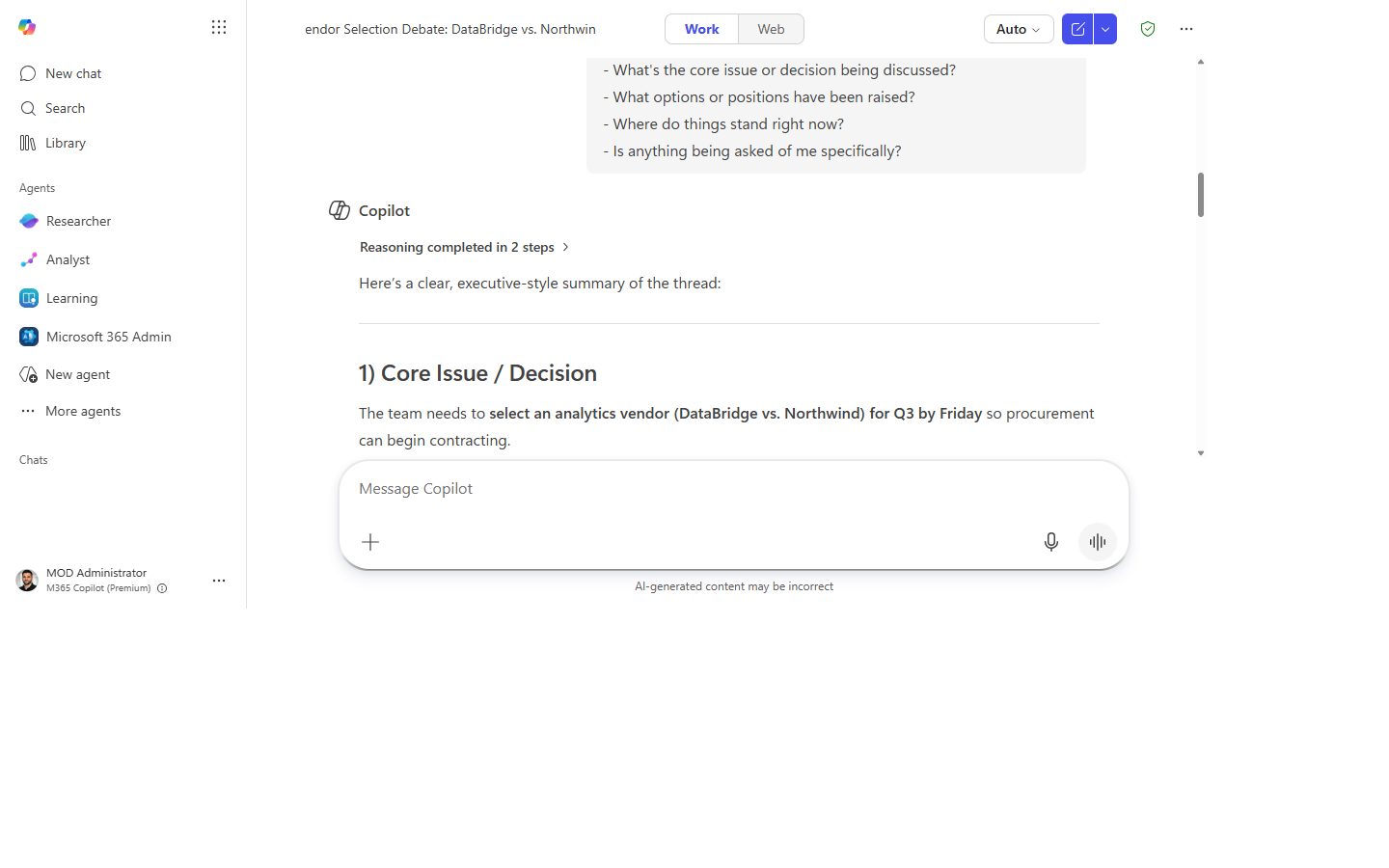
3. The summary. Core issue, the positions raised, where things stand, and anything asked of you.
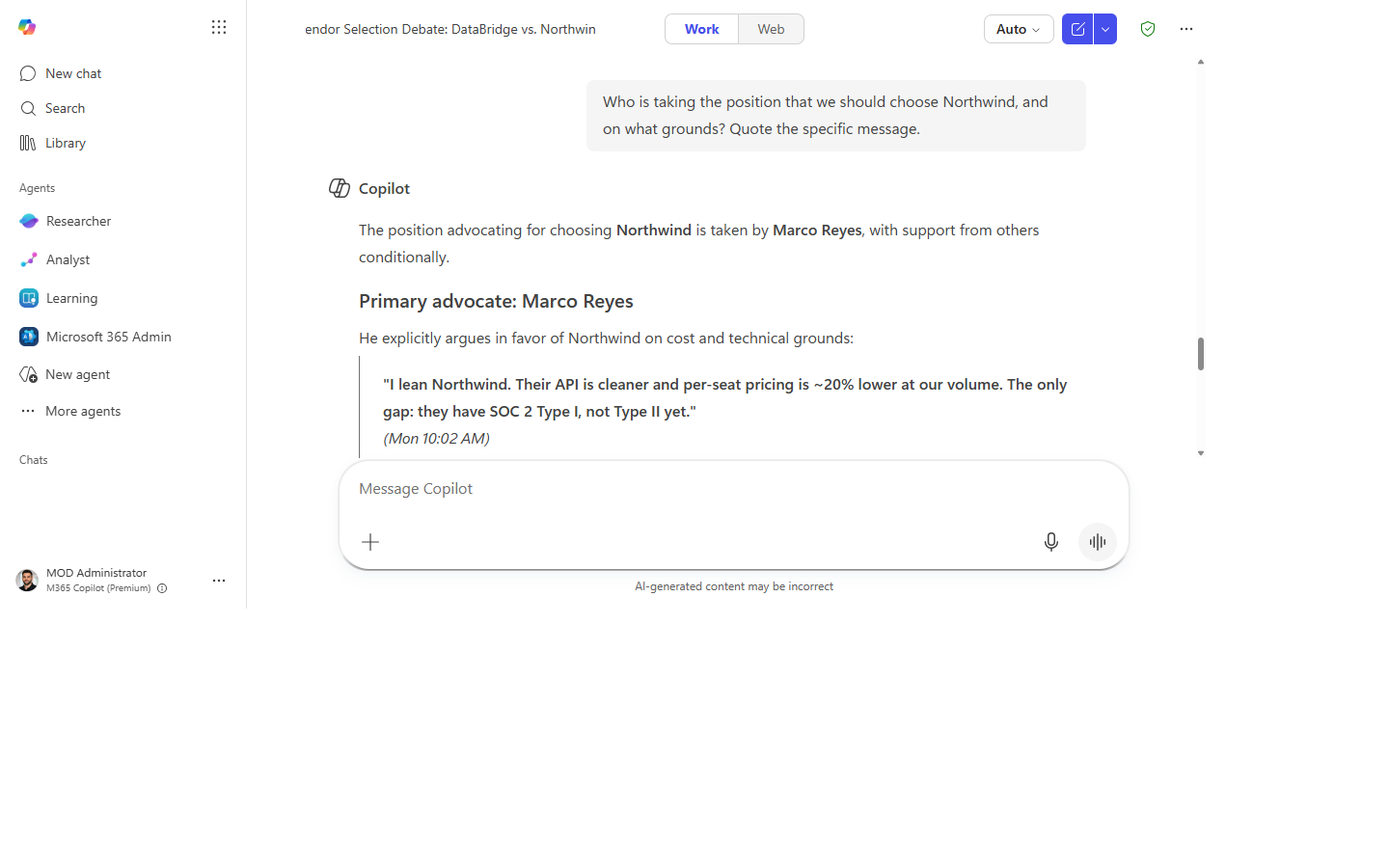
4. Dig deeper. Quoting the specific message behind a position.
5. Reply drafted. A short, professional reply built straight from the summary.
Make it better
- "What changed since [date]?" — useful for catching up on a thread you were already on.
- In Teams: the same prompt works in the Teams Copilot side panel for a long chat thread.
- Forward context: after the summary, ask for a 3-sentence TL;DR to share with someone who needs background.
- "What's the decision that needs to be made?" — a single-question follow-up that cuts straight to the point.
Watch out for
- A summary flattens a heated thread. If tone or urgency matters, open the original before you reply.
- “Who said what” is inferred from the thread. On forwarded or quoted chains it can misattribute a position, so spot-check before you quote someone.
- It only sees the messages in front of it. Side conversations and DMs that shaped the thread won't be in the summary.
Where this leads (the ramp)
Summarizing each hot thread the moment you open it is a great habit — but you're still the one who has to open it. A first-party Project Manager agent watches the workstream for you and surfaces the decisions, risks, and asks without you triaging the inbox.
Next: Project Manager agent: track a workstream automatically
Related
Thanks — glad it helped. Spotted something to improve anyway? Suggest it →
Sorry this didn't land. Tell us what broke → so we can fix that rung of the ramp.
Found an issue or want to suggest an improvement? Open a GitHub issue · Star on GitHub