Draft a status update from your week's activity
Turn a week of scattered emails, chats, and meetings into a crisp five-bullet update for your manager — in the time it takes to refill your coffee.
Stage: Copilot Chat · For: End user, Manager · Level: Starter · Time: 5 min · Saves: ~20 min vs. manual
When to use this
It's Friday at 4pm and you owe your manager a status update. The work happened — across a dozen email threads, three Teams chats, and a couple of meetings — but reconstructing it into five clean bullets is the annoying part. Copilot Chat already has access to that week of activity. Let it do the reconstruction and hand you a draft you only need to edit.
This is one of the highest-frequency Stage 1 wins: nearly everyone owes someone a recurring update, and it's a low-risk way to feel Copilot pull signal out of your own week.
What you'll need
- M365 Copilot license (Microsoft 365 Copilot Chat)
- A normal week of activity in your email, Teams, and calendar — that's the raw material
- A sense of who the update is for (manager vs. skip-level changes the tone)
Try it now — the prompt
Open Microsoft 365 Copilot Chat and paste:
Based on my last 5 working days of email, Teams messages, and meetings, draft a
5-bullet status update for my manager — what shipped, what's in progress, and
what's blocked. Keep each bullet to one line, plain and skimmable.
Filled in — a product manager on an engineering team
Based on my last 5 working days of email, Teams messages, and meetings, draft a
5-bullet status update for my manager — what shipped, what's in progress, and
what's blocked. Keep each bullet to one line, plain and skimmable.
Rewrite the "in progress" bullets to be specific about the feature name, not just the project.
Why this works: it names the window (5 working days), the sources (email, Teams, meetings), the structure (shipped / in-progress / blocked), the audience (manager), and the format (one-line bullets). A vague "summarize my week" gives you mush; this gives you something you can send.
Step by step
- Open Copilot Chat and paste the prompt. Use Microsoft 365 Copilot Chat at office.com or the Copilot app — anywhere it can see your work activity.
- Let it pull your week. Copilot reads across your recent mail, chats, and meetings and returns a structured draft — shipped, in-progress, blocked — in five tight bullets.
- Sanity-check against what you actually did. Copilot only sees what's in your M365 footprint — a hallway conversation or offline work won't show up. Add anything it missed.
- Refine in plain language: Copilot reshapes the draft in place.
Screenshots
Captured live in Microsoft 365 Copilot Chat (Work mode). The product UI moves fast — if what you see differs, trust the numbered steps above, which we keep current.
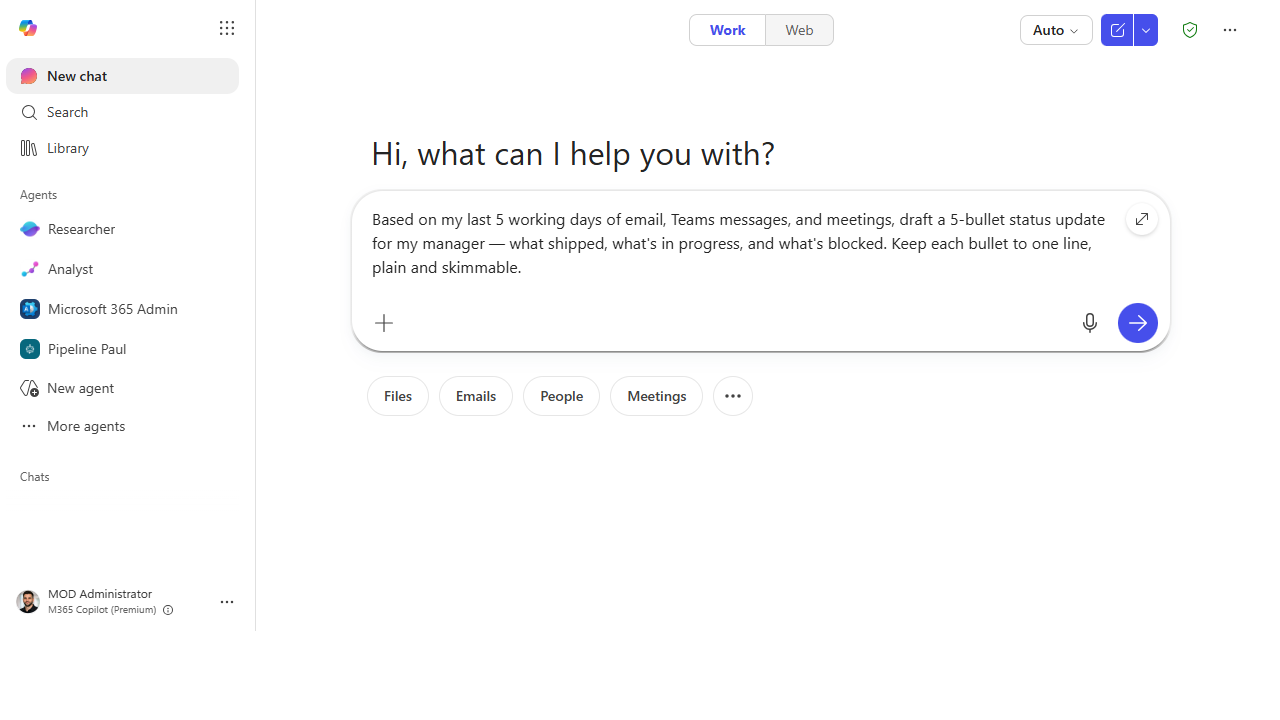 Scope the window and the structure. Last 5 working days across email, Teams, and meetings — shipped / in progress / blocked.
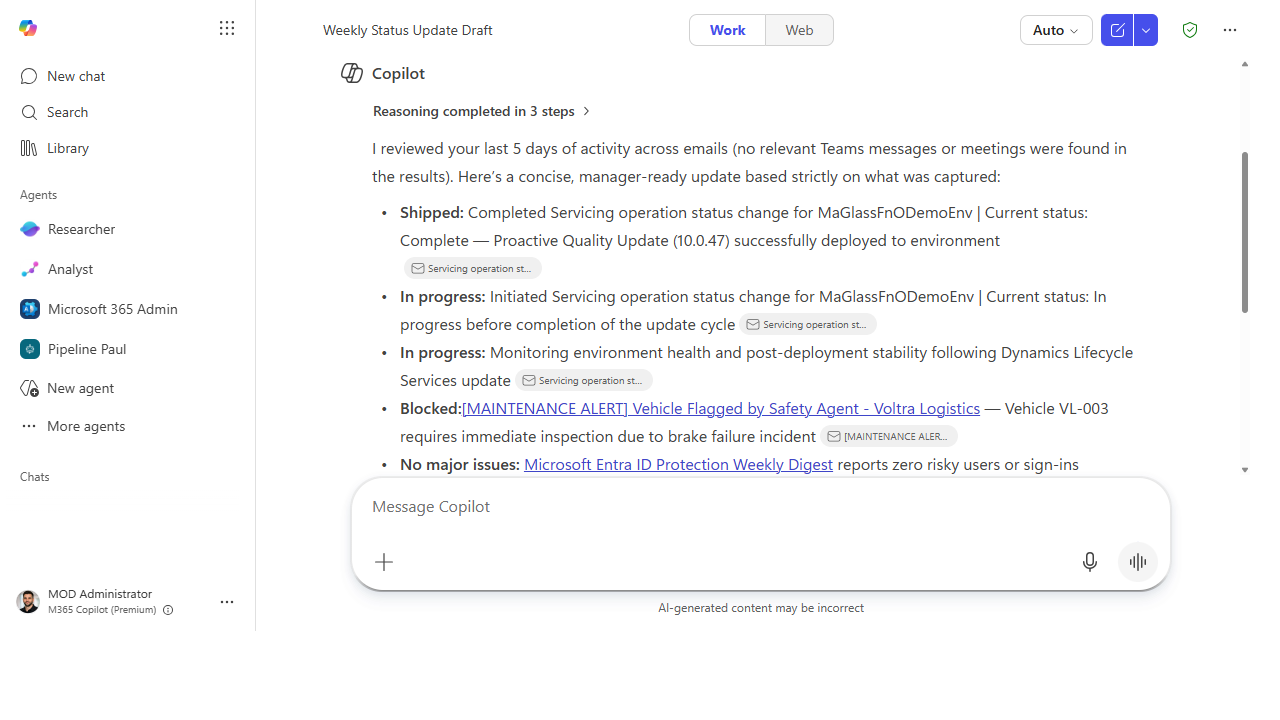 Get a draft grounded in your real week. Copilot reads across your activity and returns tight, skimmable bullets.
Make it better
Once the basic draft is solid, sharpen it into something you'll reuse every week:
- Flag anything here I should escalate, and suggest who to loop in.
- Tighten the window to just this project — ignore everything else.
- Save the prompt. Keep it in a note and paste it every Friday — the structure is the reusable part.
📚 Learn more. The in-product Copilot Prompt Gallery has paste-and-go prompts for Outlook and the other apps, and Microsoft's Scenario Library bundles role-based prompt sets with downloadable kits — both are first-party "borrow this" sources.
Watch out for
- It only sees your M365 footprint. Work that lived offline, in a side tool, or in your head won't appear. You own the completeness — read before you send.
- Don't let it overstate progress. Copilot describes activity, not outcomes. "Drafted the proposal" is not "shipped the proposal" — correct any bullet that claims more than you did.
- Mind sensitive threads. A week's activity can include confidential mail. Skim the draft for anything that shouldn't travel up the chain before you forward it.
Where this leads (the ramp)
Notice the pattern: you run this same prompt every Friday. The moment you think "why am I asking for this — just send it to me automatically every Monday morning", you've outgrown one-prompt Chat. That's the cue for Stage 3 · Cowork, where you describe the digest once and it runs on a schedule, no Friday paste required.
Related
- Chat → Turn a meeting into tracked follow-ups — the Stage 1 flagship
- Chat → Catch up on a Teams thread you were @mentioned in — sibling daily-driver
- Stage 1 Resources: see
RESOURCES.md→ Copilot Chat
Thanks — glad it helped. Spotted something to improve anyway? Suggest it →
Sorry this didn't land. Tell us what broke → so we can fix that rung of the ramp.
Found an issue or want to suggest an improvement? Open a GitHub issue · Star on GitHub