Share and co-edit an AI output with Copilot Pages
Turn any Copilot response into a shared, editable collaborative page — no copy-pasting, no formatting, no emailing a draft doc back and forth.
Stage: First-Party Agents · For: End user, Manager, Champion · Level: Starter · Time: 10 min
When to use this
You've asked Copilot to research something, draft a brief, build a plan, or synthesize a set of documents — and now you want to hand that output to colleagues as a collaborative document, not a chat transcript they can't edit.
Copilot Pages solves the handoff problem. One click turns a Copilot response into a live, editable Loop-based page that everyone on your team can open, refine, and build on together — in real time.
What you'll need
- M365 Copilot license — Microsoft 365 Copilot Chat (at office.com or the M365 Copilot app)
- A Copilot response worth sharing (a summary, a plan, a research output)
- Colleagues who have access to Microsoft 365
Try it now — the prompt
Run this in Microsoft 365 Copilot Chat to produce an output worth turning into a shared page — then use Edit in Pages on the response:
Draft a one-page project status brief for [project name] based on our recent
emails, chats, and documents. Include: where things stand, what's blocked,
decisions still needed, and the next three milestones with owners. Write it so
the team can edit and add to it as a working document.
Why this prompt works: it asks for a structured, editable working document rather than a quick answer, so the response is already shaped for a Page the team can refine together.
How it works
After any Copilot response in Microsoft 365 Copilot Chat, you'll see an Edit in Pages button (or an option to open the response as a Page). This creates a Loop-based page pre-populated with the AI content — immediately shareable, collaborative, and editable.
Step by step
- Get a Copilot output worth keeping. Run any research, summary, or planning prompt in Microsoft 365 Copilot Chat. For example:
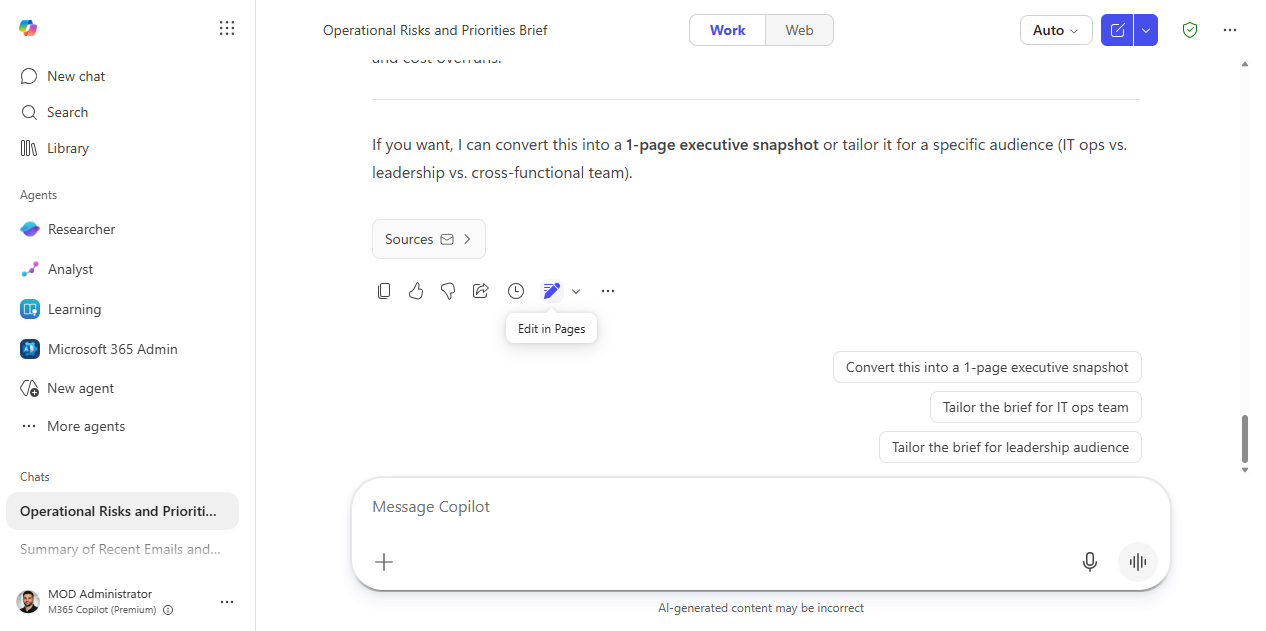
- Click "Edit in Pages" in the Copilot response toolbar. This opens the content in a new Copilot Page.
- Review and clean up. The page is now fully editable — add context, restructure sections, remove anything that shouldn't go to the group.
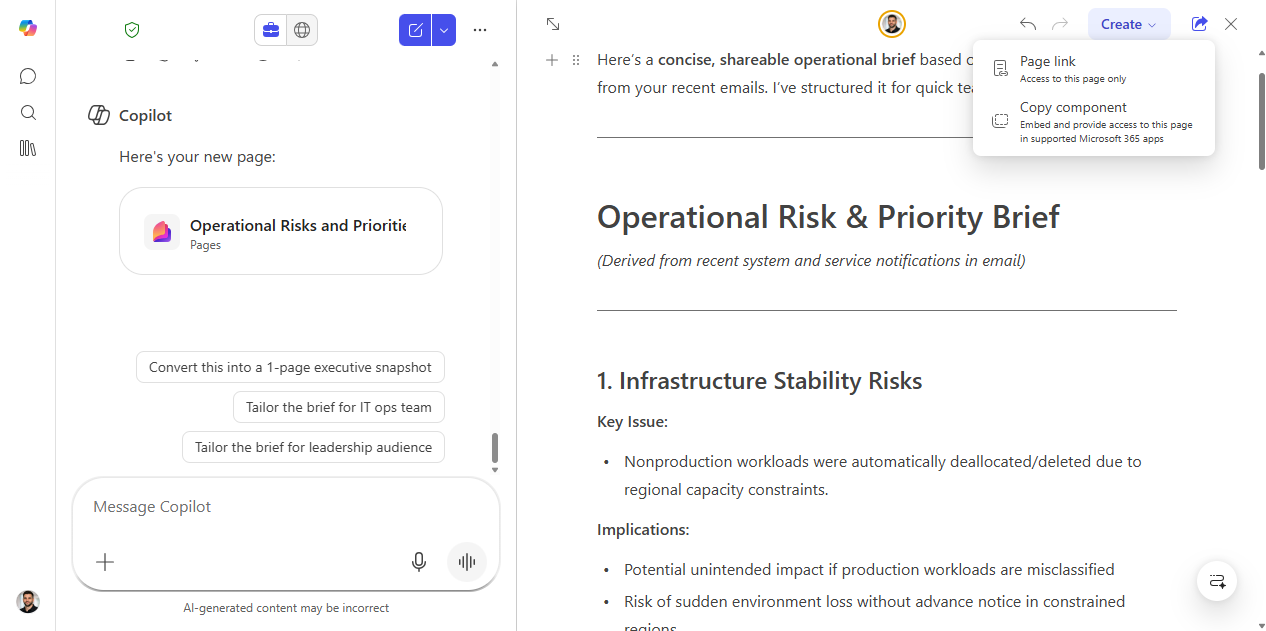
- Share the page. Use the Share button in the top-right of the page to copy a link or send it directly in Teams. Recipients can open and edit without needing to request access.
- Collaborate in real time. Team members can add comments, edit sections, and @mention each other — the page updates live like a Loop component.
Screenshots
Captured live in Microsoft 365 Copilot Chat and Copilot Pages. The product UI moves fast — if what you see differs, trust the numbered steps above, which we keep current.
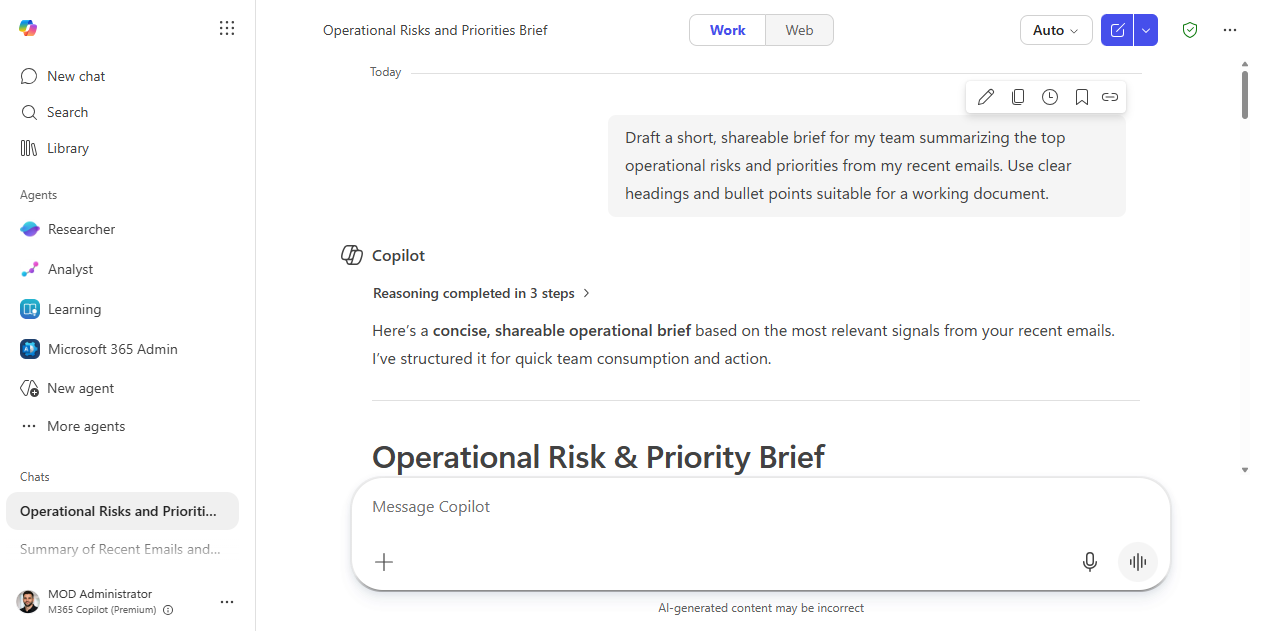
1. A Copilot output worth keeping. A shareable operational brief generated in Microsoft 365 Copilot Chat.
2. Edit in Pages. The "Edit in Pages" control in the response toolbar.
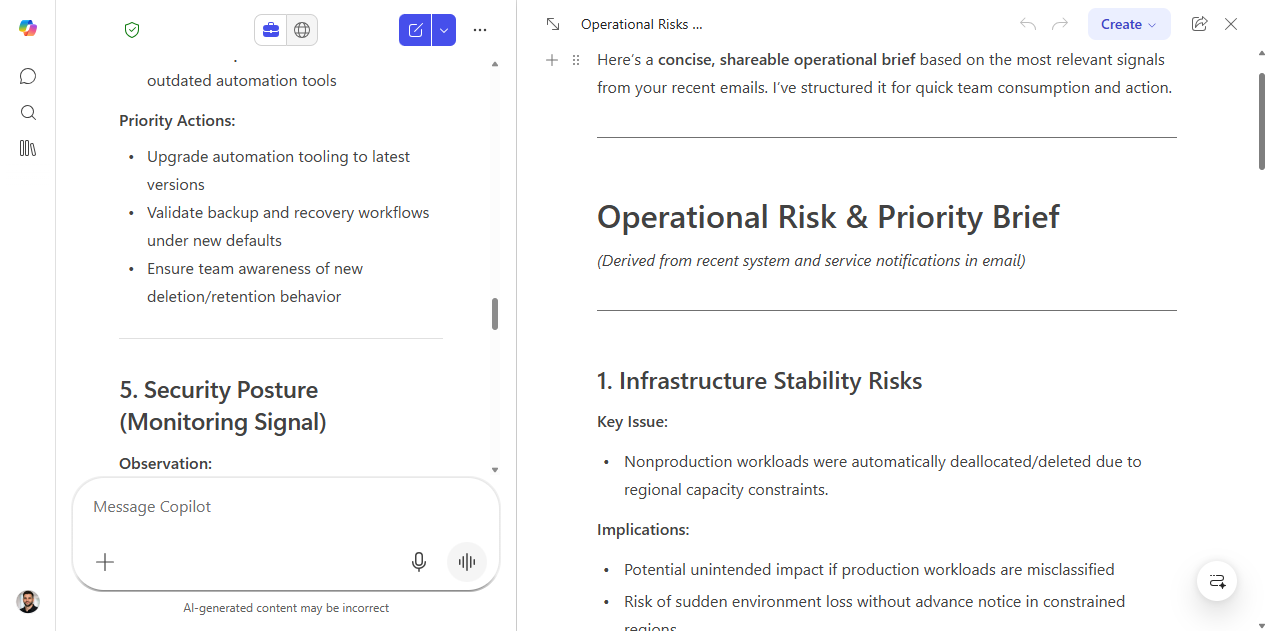
3. The editable page. The response opens beside the chat as a Loop-based Copilot Page — a fully editable canvas.
4. Share the page. The Share menu — copy a page link, or embed the page as a live component in your Microsoft 365 apps. Recipients open and co-edit without requesting access.
Make it better
- Embed in a Teams channel: paste the Copilot Page link into a channel tab — it renders as an editable page right inside Teams.
- Use it for meeting prep: generate talking points or an agenda in Copilot, push to a Page, share with attendees, and let them add context before the meeting.
- Iterative research: have each team member add their own inputs to the page, then ask Copilot to re-summarize with the new context added.
- Pages as a knowledge capture habit: at the end of a major project, prompt Copilot for a lessons-learned summary and save it as a Page in the team's SharePoint.
Watch out for
- Access mismatch. A Page has its own sharing settings — confirm recipients can open it, and don't push content into a Page that's broader than the audience should see.
- Edits don't flow back to chat. Once you push to a Page, the chat response and the Page are separate — keep editing in the Page, not the original response.
- Half-baked outputs. Pages amplifies whatever you start with; clean up the response before sharing so the team builds on a solid draft, not a rough one.
Where this leads (the ramp)
Pages turns a single output into something your team can build on together. The next step up is having that shareable artifact generated for you on a cadence — Cowork can run a recurring job and hand you a fresh, page-ready digest every week.
Related
Thanks — glad it helped. Spotted something to improve anyway? Suggest it →
Sorry this didn't land. Tell us what broke → so we can fix that rung of the ramp.
Found an issue or want to suggest an improvement? Open a GitHub issue · Star on GitHub