Turn a meeting into tracked follow-ups
Walk out of any meeting and have decisions, owners, and due dates captured in under five minutes — without re-watching the recording.
Stage: Copilot Chat · For: End user, Champion · Level: Starter · Time: 5 min · Saves: ~25 min vs. manual
When to use this
You just finished a 45-minute project sync. Three decisions were made, half a dozen tasks got handed out, and two things were left hanging — and all of it lives in your memory and a wall of chat. Instead of scrubbing the recording later tonight, you let Copilot Chat read the meeting and hand you a clean list while it's still fresh.
This is the single best "first win" for a new Copilot user: it's low-risk, instantly useful, and shows the magic on day one.
What you'll need
- M365 Copilot license (Copilot in Teams / Microsoft 365 Copilot Chat)
- The meeting had transcription or recording turned on (Copilot reads the transcript, not the audio)
- You were an attendee, or have access to the meeting recap
Try it now — the prompt
Open Copilot in Teams (or Microsoft 365 Copilot Chat) and paste:
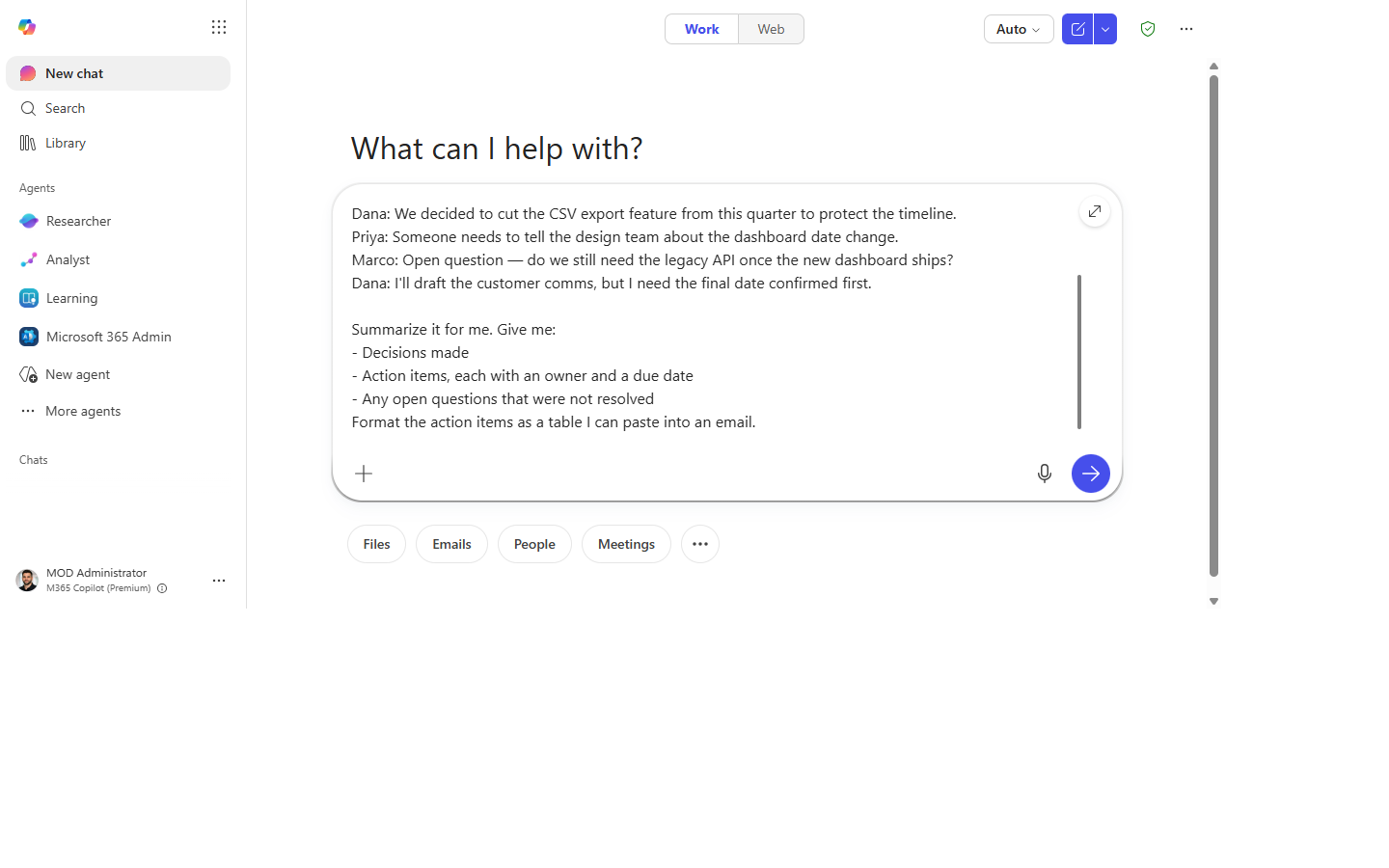
Summarize the meeting "[meeting name]" from [today/this morning]. Give me:
- Decisions made
- Action items, each with an owner and a due date
- Any open questions that were not resolved
Format the action items as a table I can paste into an email.
Filled in — a product roadmap sync
Why this prompt works: it names the meeting (so Copilot grounds on the right transcript), asks for specific outputs instead of a vague "summary," and dictates the output format ("a table I can paste"). Specific asks + named format = dramatically better results.
Step by step
- Open Copilot in Teams. From the meeting's recap page, or the Copilot side panel, or Microsoft 365 Copilot Chat at office.com. You'll see the chat box.
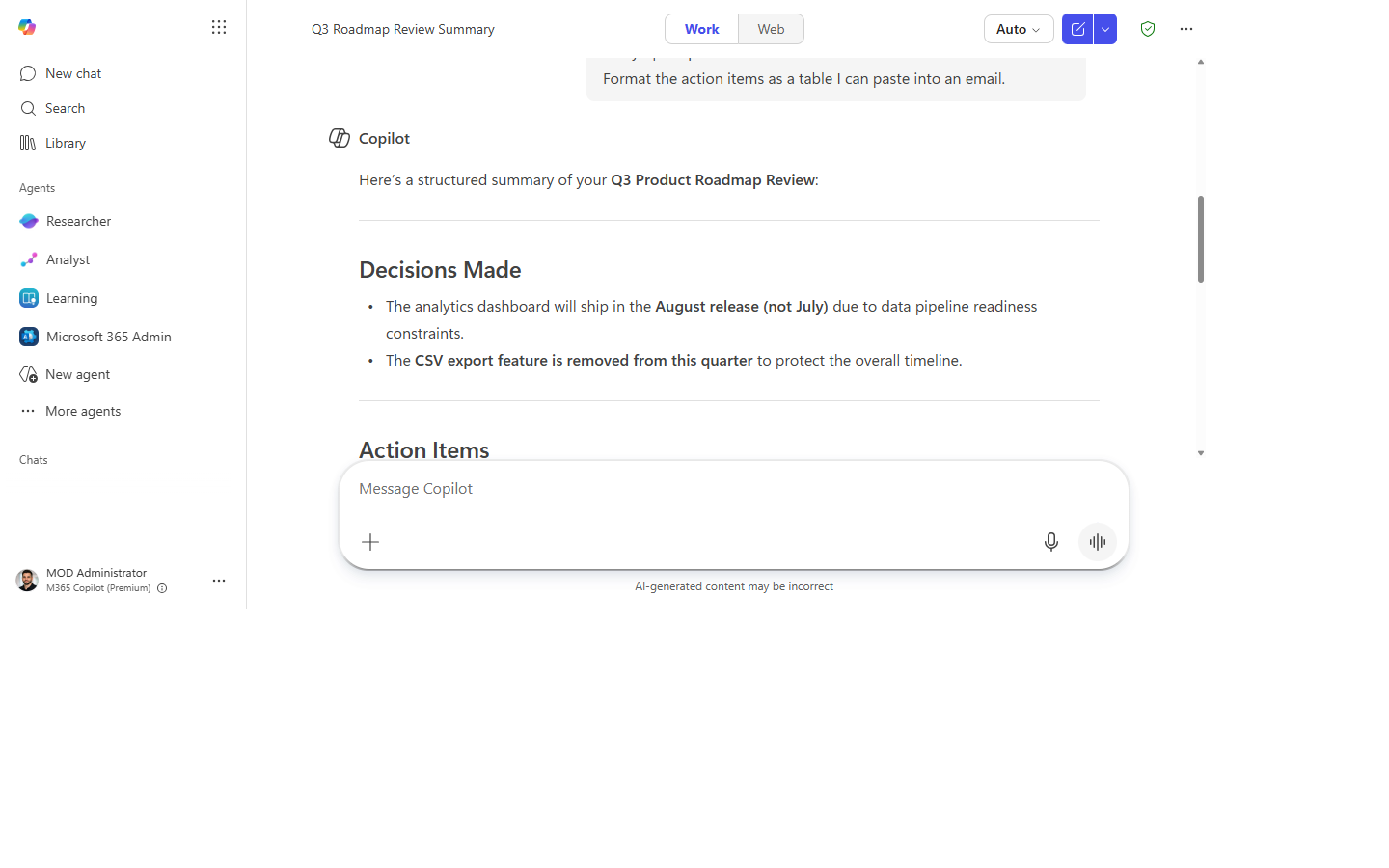
- Paste the prompt (swap in your meeting name). Copilot reads the transcript and returns a structured summary — a short decisions list, an action-item table with owners and dates, and an open-questions list.
- Sanity-check the owners and dates. Skim the table. If a due date is missing or an owner looks wrong, that's expected — you'll fix it in the next step.
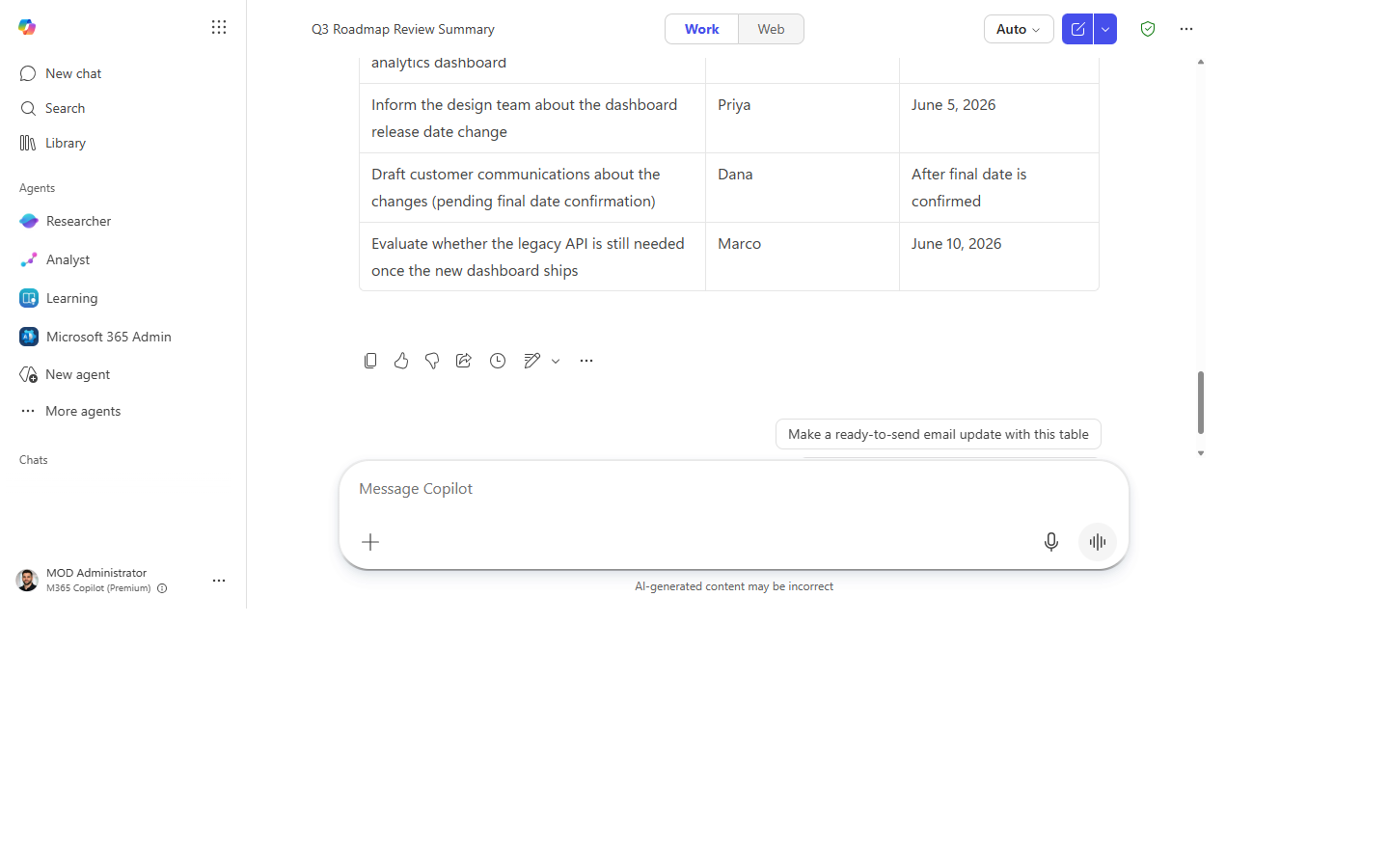
- Refine in plain language: Copilot updates the table in place.
Screenshots
Captured live in Microsoft 365 Copilot Chat (Work mode). The product UI moves fast — if what you see differs, trust the numbered steps above, which we keep current.
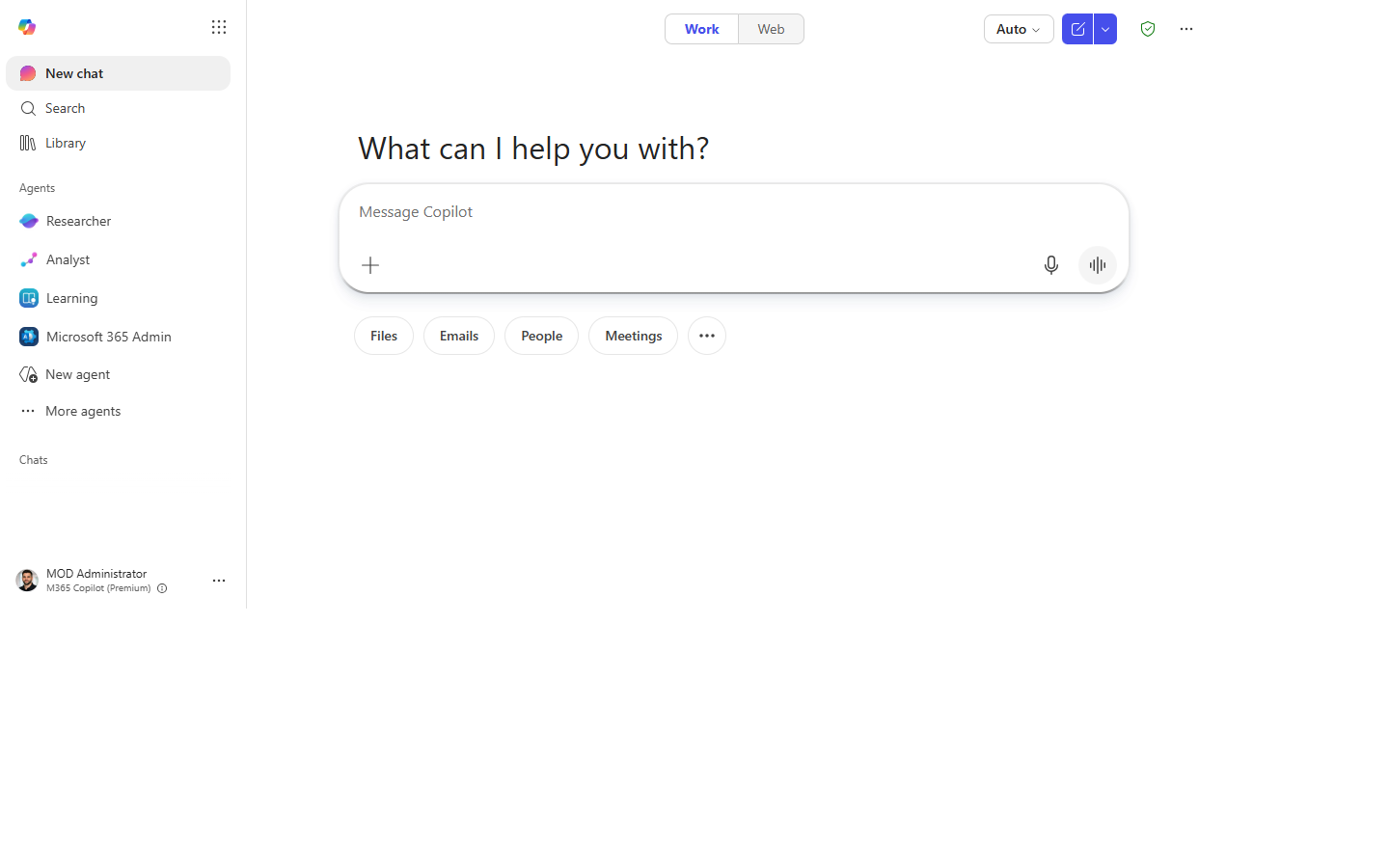
1. Open Copilot Chat. The composer is ready for your prompt.
2. Prompt entered. The meeting-summary prompt pasted in, meeting name filled, ready to send.
3. Structured response. Decisions, an action-item table with owners and due dates, and the open questions.
4. Refined in place. After one plain-language follow-up — missing due dates filled and an owner corrected.
Make it better
Once the table is right, chain follow-ups to turn a summary into actual progress:
- Draft a short email to each owner with just their action items and due dates.
- Flag any action item that depends on another one finishing first.
- Rewrite the open questions as agenda items for next week's sync.
Each of these is a separate paste — Copilot keeps the meeting context across the conversation.
Watch out for
- No transcript, no summary. If recording/transcription was off, Copilot has nothing to read. Turn it on at the start of meetings going forward.
- Owner attribution can slip. Copilot infers who owns what from who spoke — verify before you send anything. The 30-second check is worth it.
- Name the meeting precisely. "This morning's sync" works if you only had one; otherwise use the exact title so it grounds on the right transcript.
Where this leads (the ramp)
Doing this after every meeting is the tell that you're ready for Stage 2. The first-party Facilitator agent can generate recaps and follow-ups automatically — no prompt required — and agents in Teams channels can post the action items to the team for you. You've just learned to do by hand what an agent will soon do on autopilot.
Next: First-Party Agents → Auto-recap every meeting with Facilitator
Related
- Chat → Catch up on a Teams thread you were @mentioned in
- Chat → Draft a status update from your week's activity
- Stage 1 Resources: see
RESOURCES.md→ Copilot Chat
Thanks — glad it helped. Spotted something to improve anyway? Suggest it →
Sorry this didn't land. Tell us what broke → so we can fix that rung of the ramp.
Found an issue or want to suggest an improvement? Open a GitHub issue · Star on GitHub