Build a meeting agenda from context and notes
Never start an agenda from a blank page — Copilot builds a structured, time-slotted agenda from whatever context you have in under two minutes.
Stage: Copilot Chat · For: End user, Manager · Level: Starter · Time: 5 min · Saves: ~10 min vs. manual
When to use this
You're organizing a project sync, a stakeholder update, or a team standup and you need to send an agenda before the meeting. You have some context — previous meeting notes, a project brief, a few outstanding issues — but turning that into a clean, time-slotted agenda takes more effort than it should.
This prompt works whether you have a detailed brief or just a topic and a list of names. The output is a structured agenda you can paste directly into a Teams meeting invite.
What you'll need
- M365 Copilot license — Microsoft 365 Copilot Chat or Copilot in Teams
- Some context: previous notes, a doc, outstanding decisions, or just a description of the meeting goal
- The meeting duration and attendee list (rough)
Try it now — the prompt
Open Microsoft 365 Copilot Chat and paste:
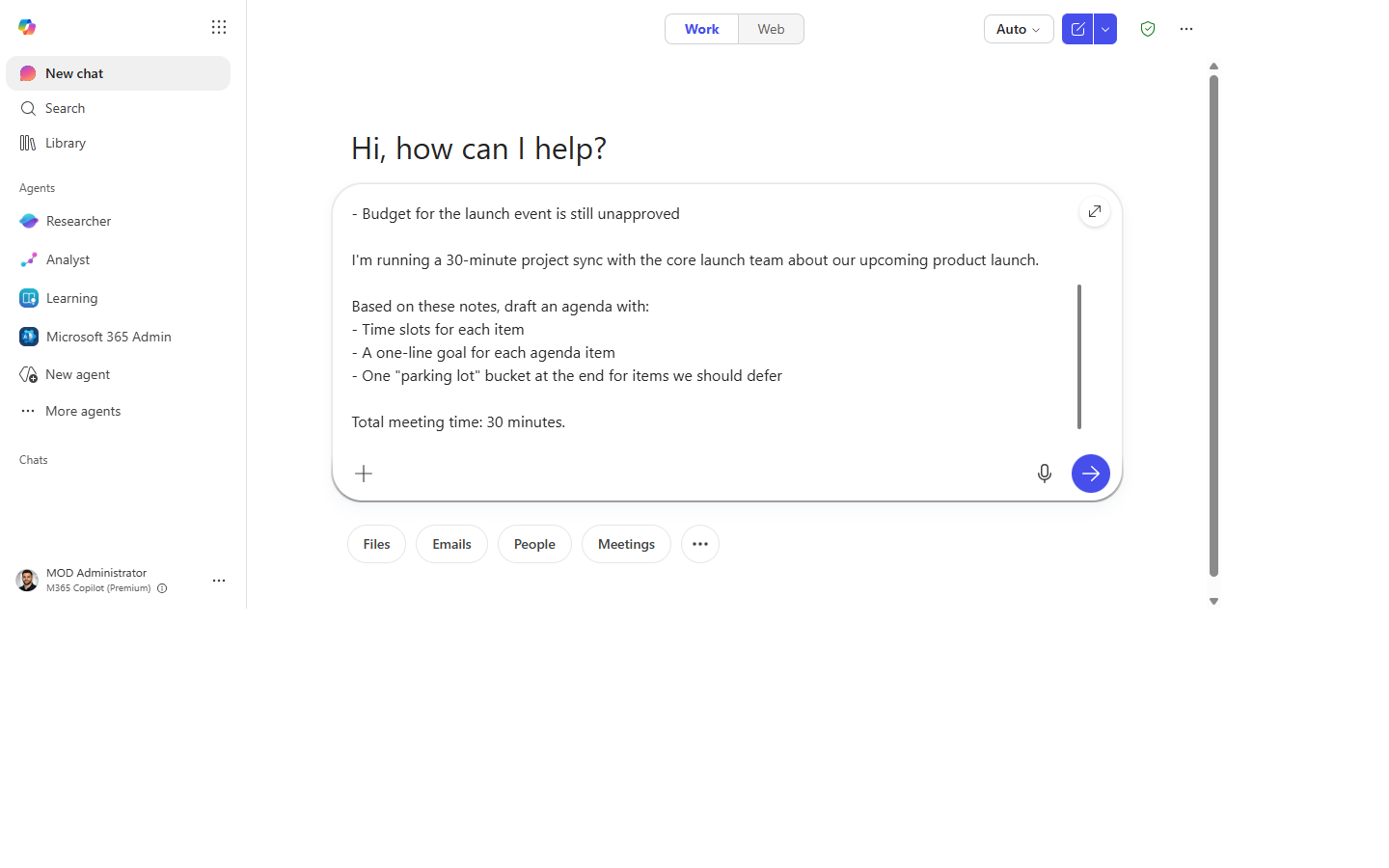
I'm running a [30-minute / 60-minute] [project sync / stakeholder update / team standup]
with [audience] about [topic].

Based on [these notes / this background / the last time we met], draft an agenda with:
- Time slots for each item
- A one-line goal for each agenda item
- One "parking lot" bucket at the end for items we should defer

Total meeting time: [30 minutes].
Why this prompt works: Time slots force prioritization. A goal per item gives attendees pre-reading context. The "parking lot" bucket heads off scope creep during the meeting — it gives tangents a place to land.
Step by step
- Paste your context into the chat — previous meeting notes, a project brief, or just a few bullet points of what needs to be discussed.
- Run the prompt with your meeting type, audience, and time filled in.
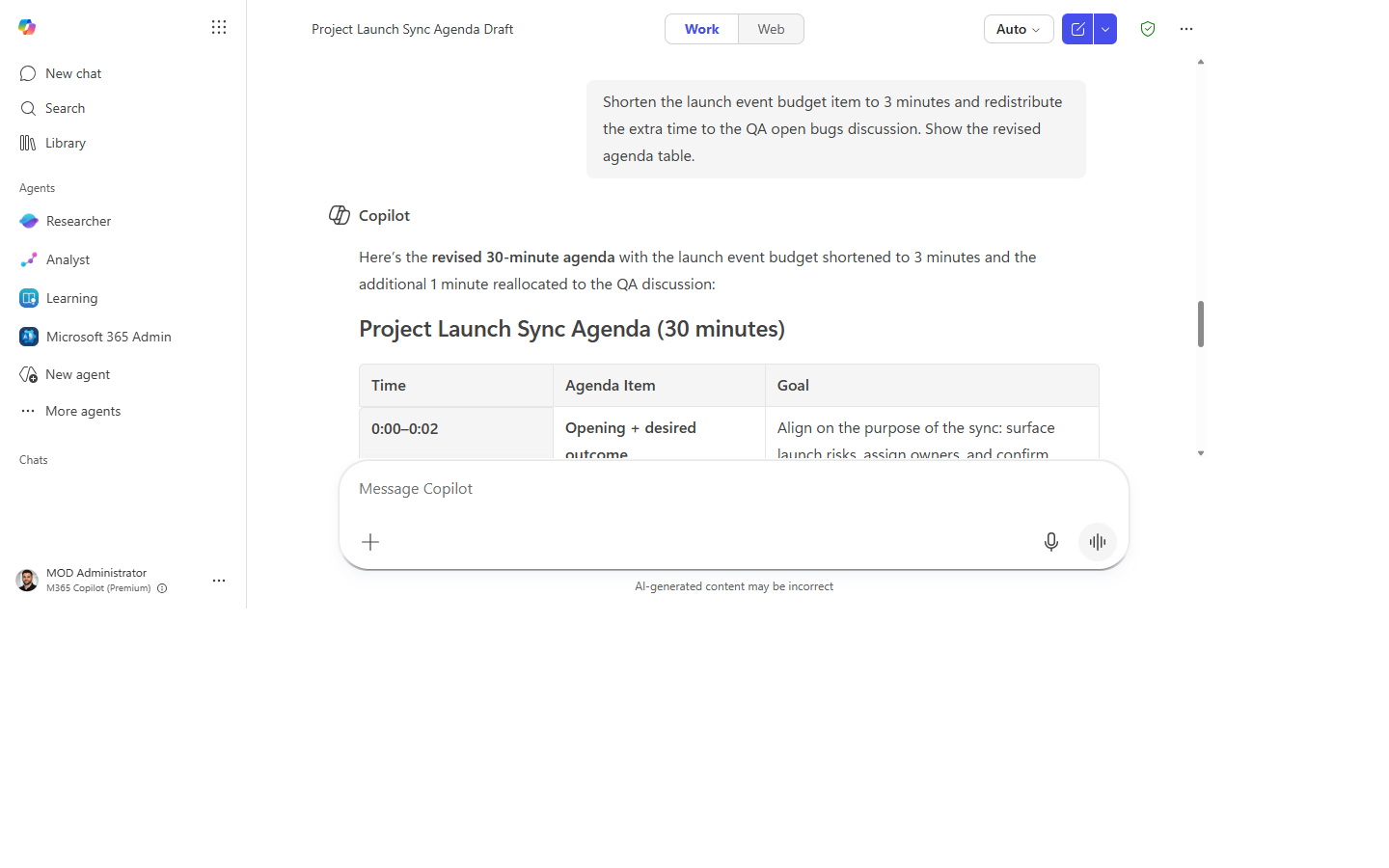
- Adjust timing. If an item feels over- or under-weighted, ask:
- Add pre-reads. Ask:
- Paste into the meeting invite. Copy the agenda into the Teams invite body — attendees see it in their calendar and can prep.
Screenshots
Captured live in Microsoft 365 Copilot Chat (Work mode). The product UI moves fast — if what you see differs, trust the numbered steps above, which we keep current.
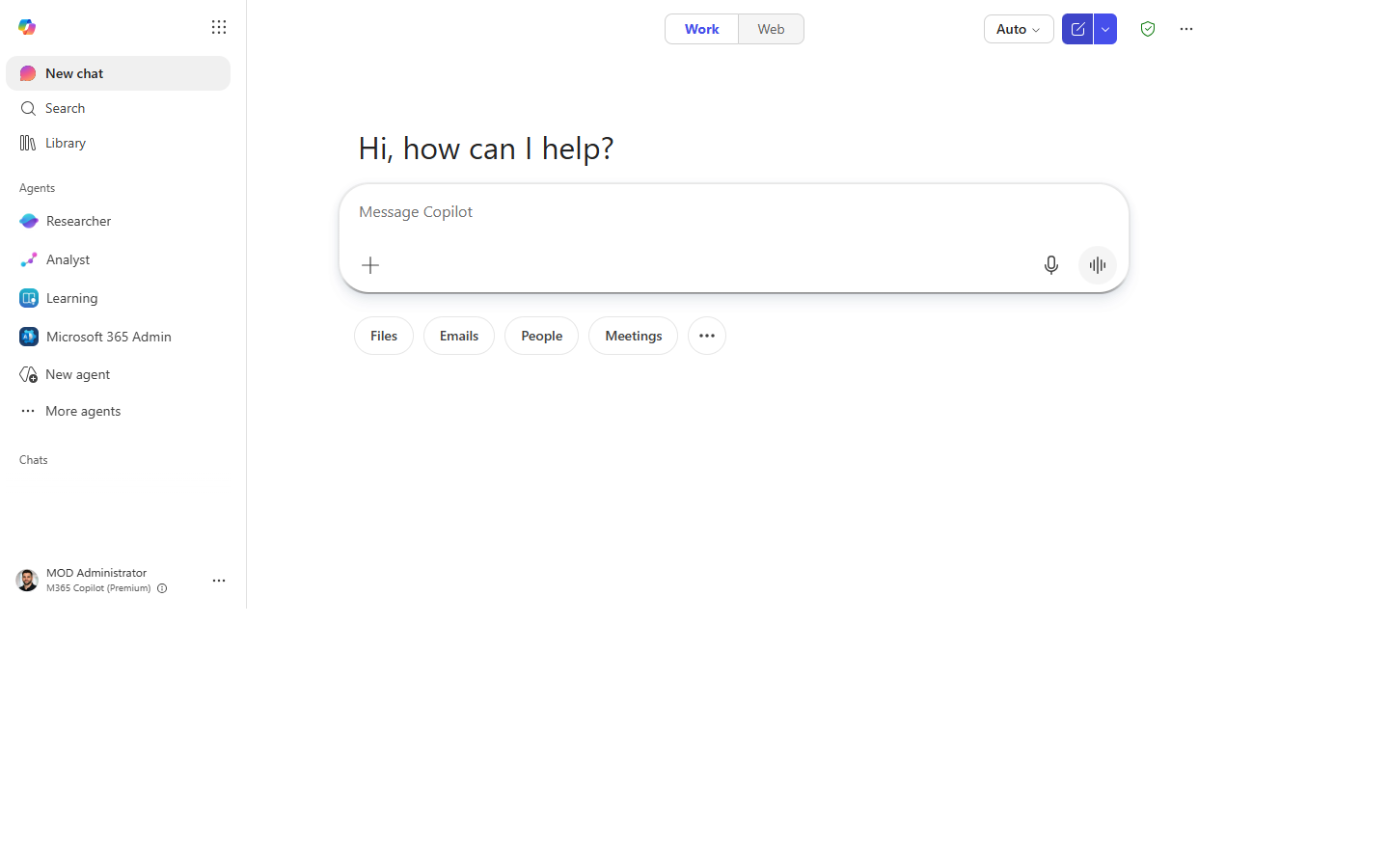
1. Context pasted in. Copilot Chat open with your notes or brief in the composer.
2. Prompt entered. The agenda prompt typed in with meeting type, audience, and time.
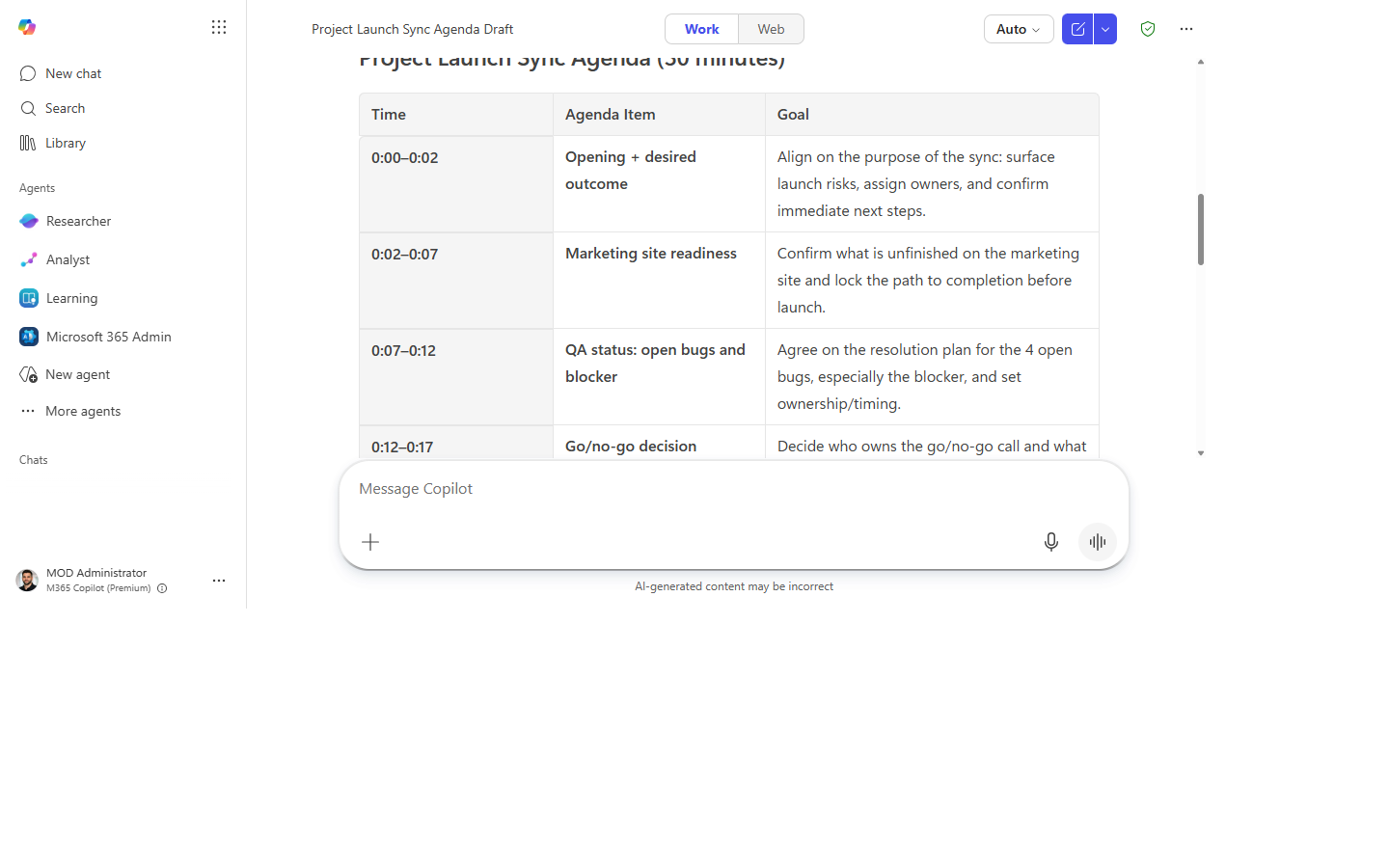
3. A time-slotted agenda. Each item with a time slot and a one-line goal, plus a parking-lot bucket.
4. Timing adjusted. One item shortened and the time redistributed across the agenda.
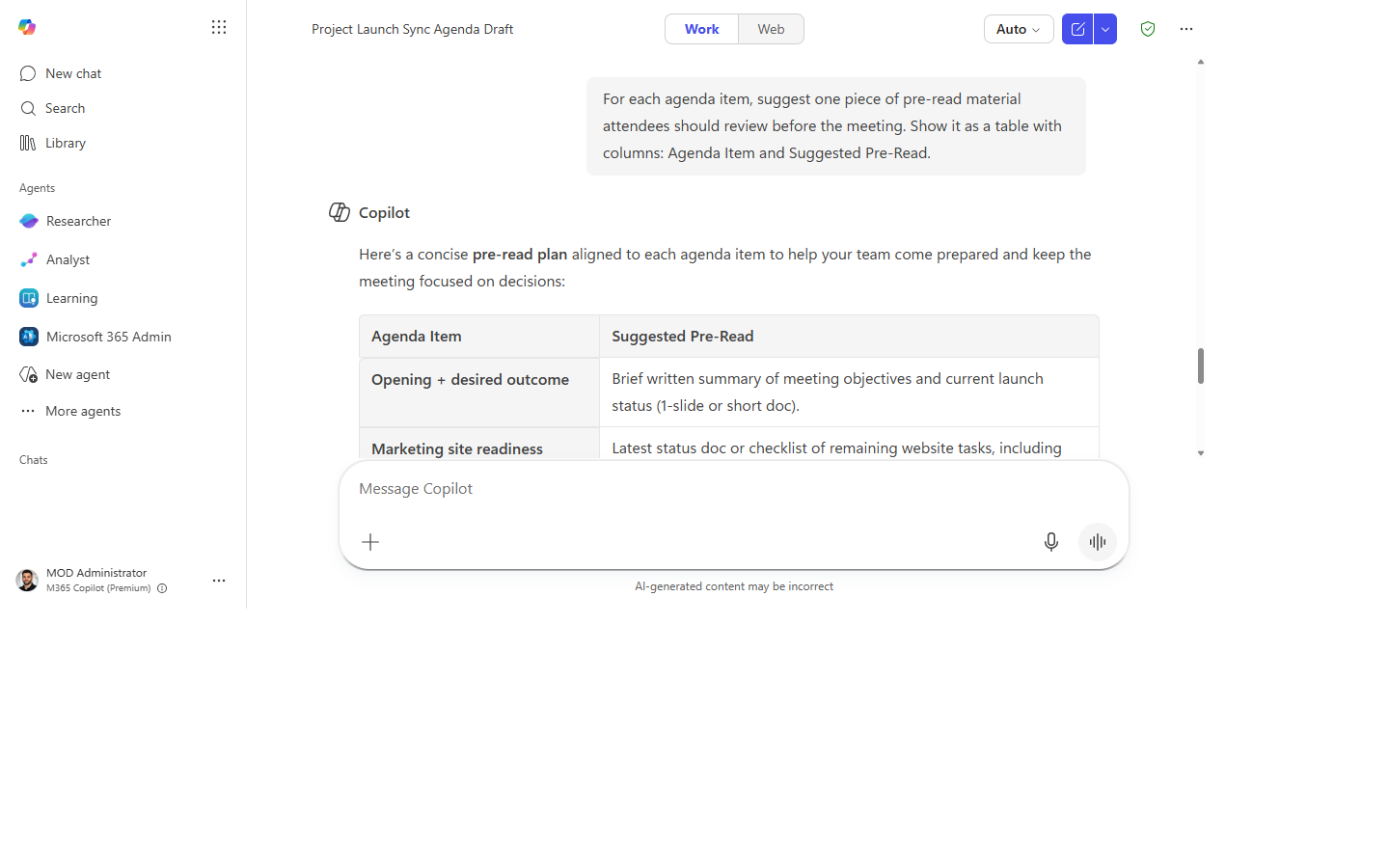
5. Pre-reads added. A suggested piece of pre-read material attached to each agenda item.
Make it better
- No notes? Just describe the meeting goal:
"We need to decide whether to extend the deadline for [project]."Copilot generates the structure. - Recurring meeting? Save the prompt as a recurring Teams chat with yourself and re-run it each week with updated context.
- After the meeting: use the same context to ask Copilot to draft the recap email.
Watch out for
- Time slots are estimates, not promises. The discussion that matters always runs long, so build in slack.
- An agenda built from your notes inherits your blind spots. Ask whether anything the attendees care about is missing.
- A parking-lot bucket only works if someone owns it afterward. Don't let it become a graveyard.
Where this leads (the ramp)
Building the agenda is the front half of a well-run meeting; the back half is the recap and the follow-ups. The first-party Facilitator agent closes that loop automatically the moment the meeting ends.
Related
Thanks — glad it helped. Spotted something to improve anyway? Suggest it →
Sorry this didn't land. Tell us what broke → so we can fix that rung of the ramp.
Found an issue or want to suggest an improvement? Open a GitHub issue · Star on GitHub