Catch up on a Teams thread you were @mentioned in
Get pulled into an 80-message thread and know — in 30 seconds — what's being asked of you and by when, without scrolling to the top.
Stage: Copilot Chat · For: End user · Level: Starter · Time: 3 min · Saves: ~10 min vs. manual
When to use this
You come back from a meeting to a Teams thread with your name in it and 80 messages of back-and-forth. Somewhere in there is a question for you, but finding it means reading the whole thing. Instead, let Copilot read the thread and tell you the one thing that matters: what do they need from me, and when.
It's the fastest "this just saved me ten minutes" moment in Copilot — which makes it a perfect early habit for a new user.
What you'll need
- M365 Copilot license (Copilot in Teams)
- A Teams chat or channel thread you have access to — ideally one you were @mentioned in
- Nothing else; this works on threads you can already see
Try it now — the prompt
Open the thread, open Copilot in Teams, and ask:
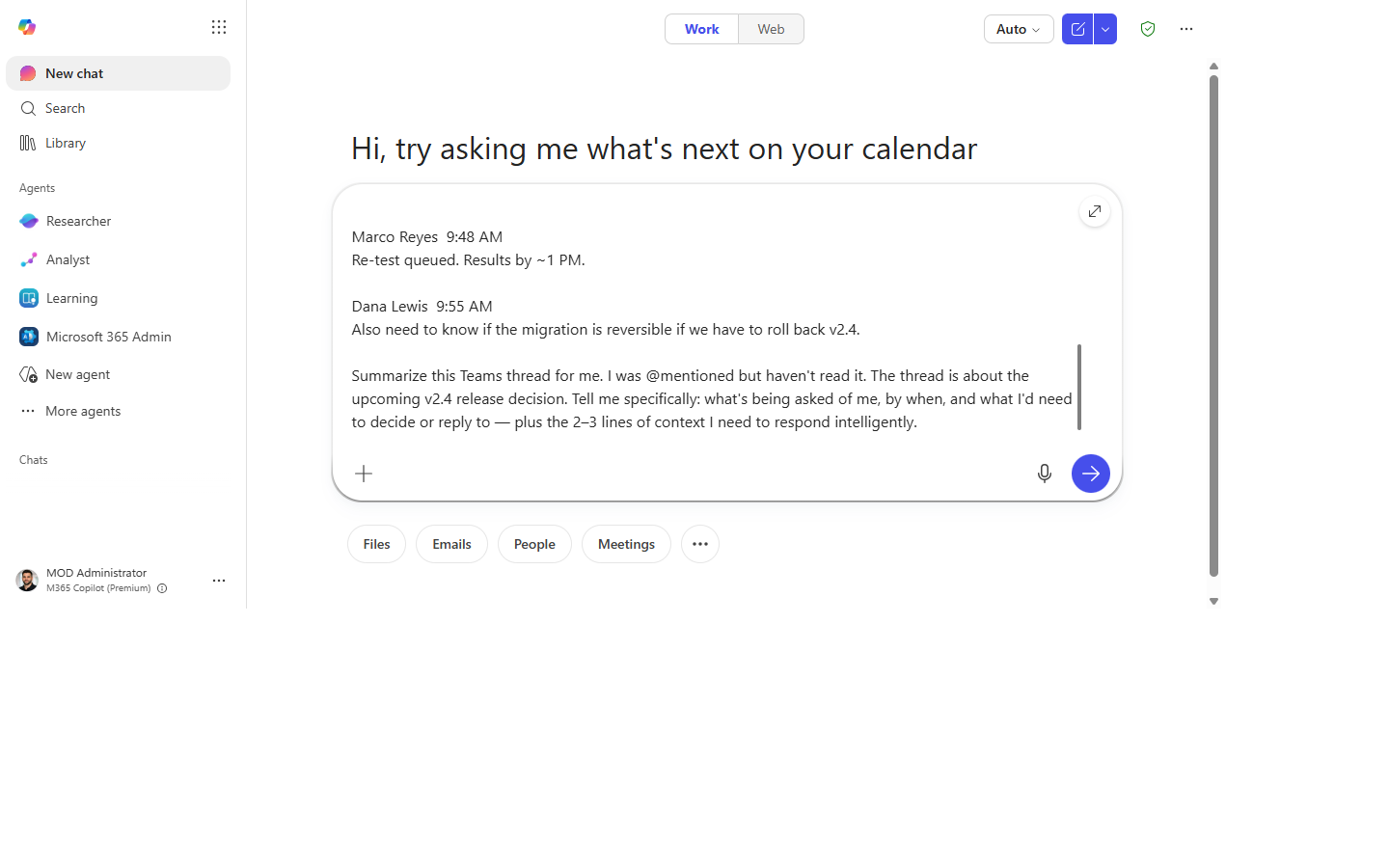
Summarize this Teams thread for me. I was @mentioned but haven't read it. Tell me
specifically: what's being asked of me, by when, and what I'd need to decide or
reply to — plus the 2–3 lines of context I need to respond intelligently.
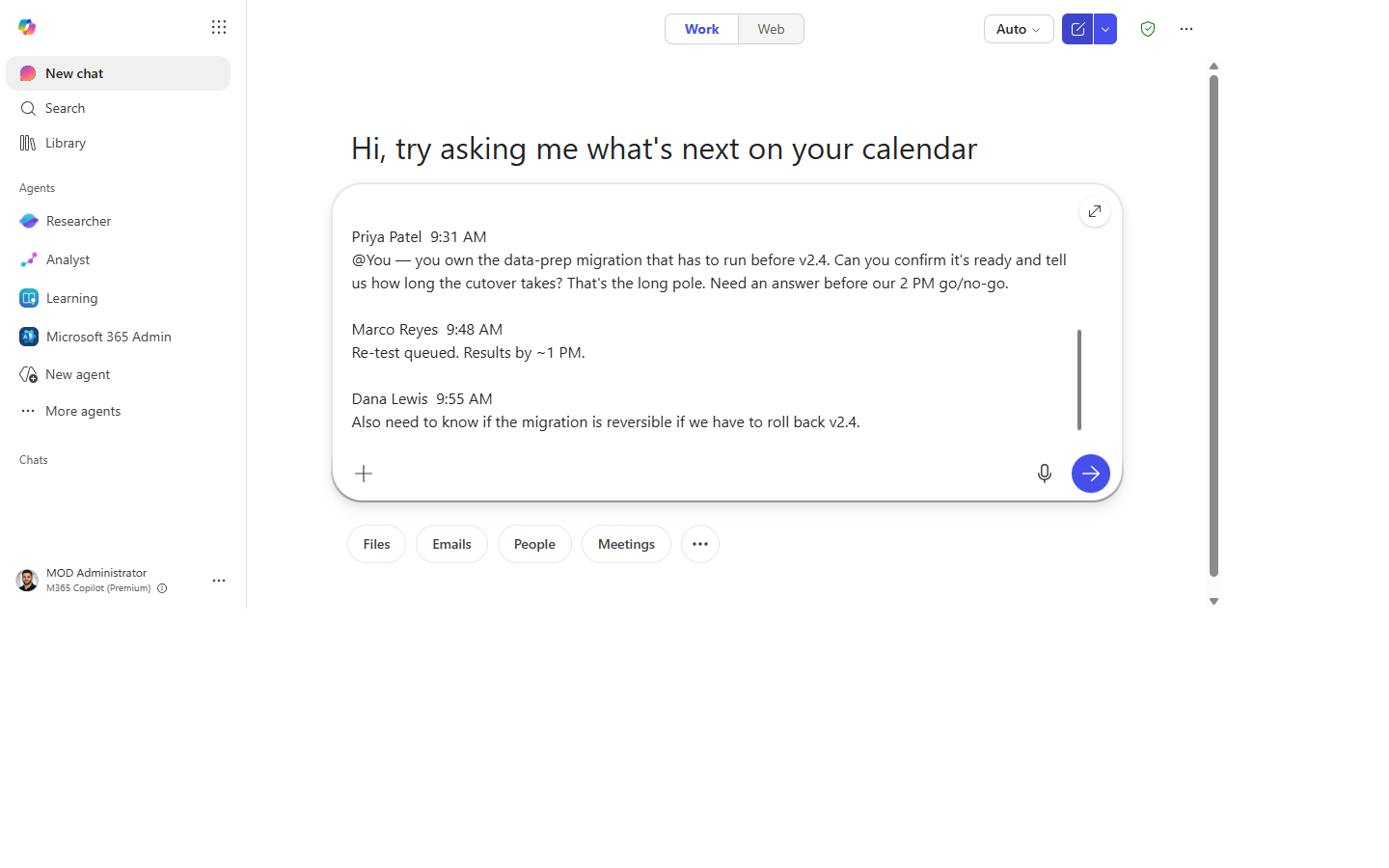
Filled in — a 50-message channel thread about a release decision
Why this works: it doesn't ask for a generic summary — it asks for your action ("what's being asked of me, by when"). That single shift turns a wall of text into a to-do with a deadline and just enough context to act on it.
Step by step
- Open the thread and launch Copilot in Teams. Use the Copilot button on the chat/channel, or the "Summarize" option on a long thread.
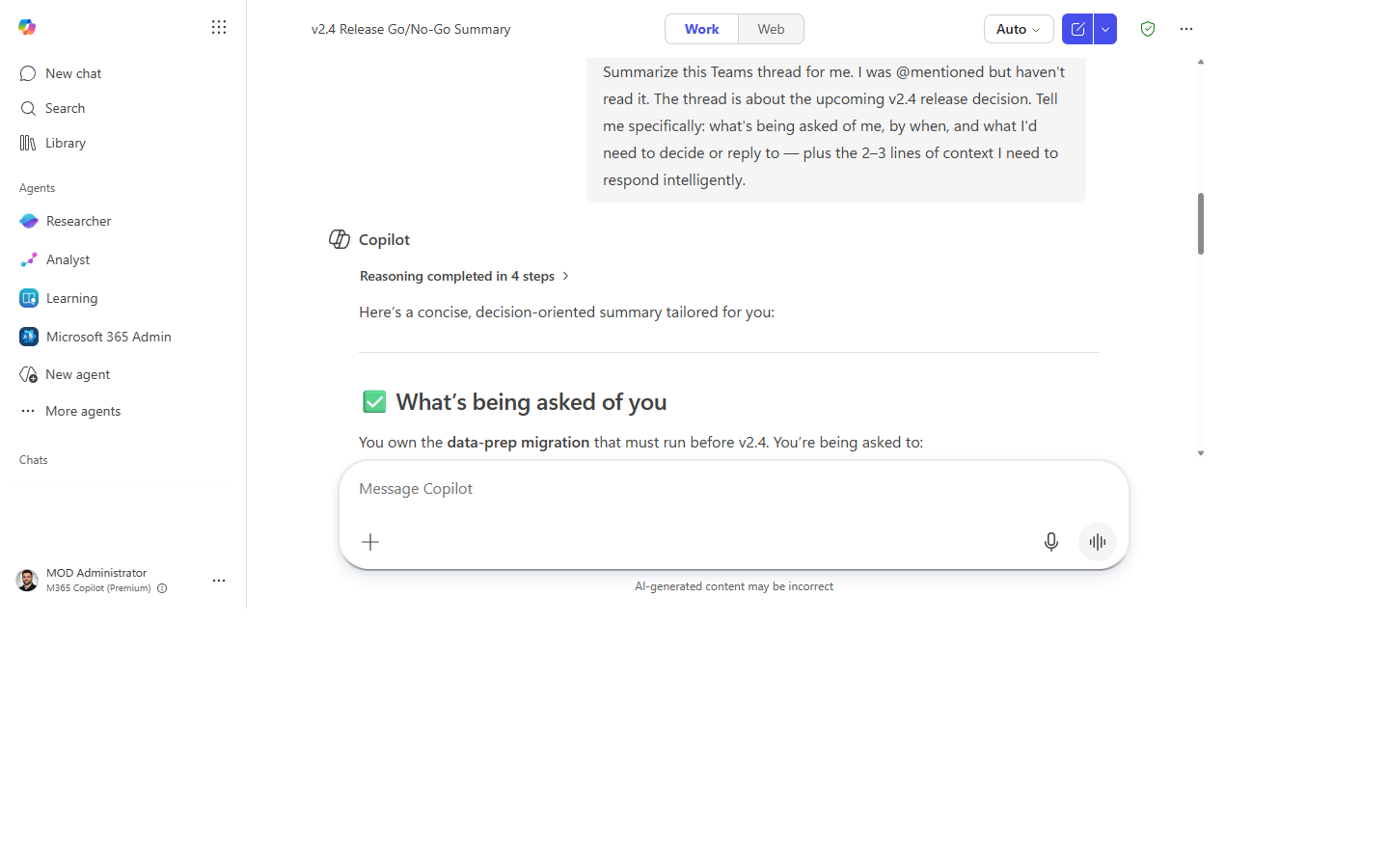
- Paste the prompt. Copilot reads the whole thread and returns the gist, what's being asked of you, the deadline, and the few lines of context behind it.
- Check the "asked of me" list against the thread. Confirm who set the deadline and that the ask is really yours — a quick scroll to the relevant message is enough.
- Act without leaving the chat:
Screenshots
Captured live in Microsoft 365 Copilot Chat (Work mode). The product UI moves fast — if what you see differs, trust the numbered steps above, which we keep current.
1. Thread open, Copilot ready. The thread you were @mentioned in, with the composer ready.
2. Prompt entered. The catch-up prompt typed into the composer.
3. What's being asked of you. The gist, the ask, the deadline, and the few lines of context to reply.
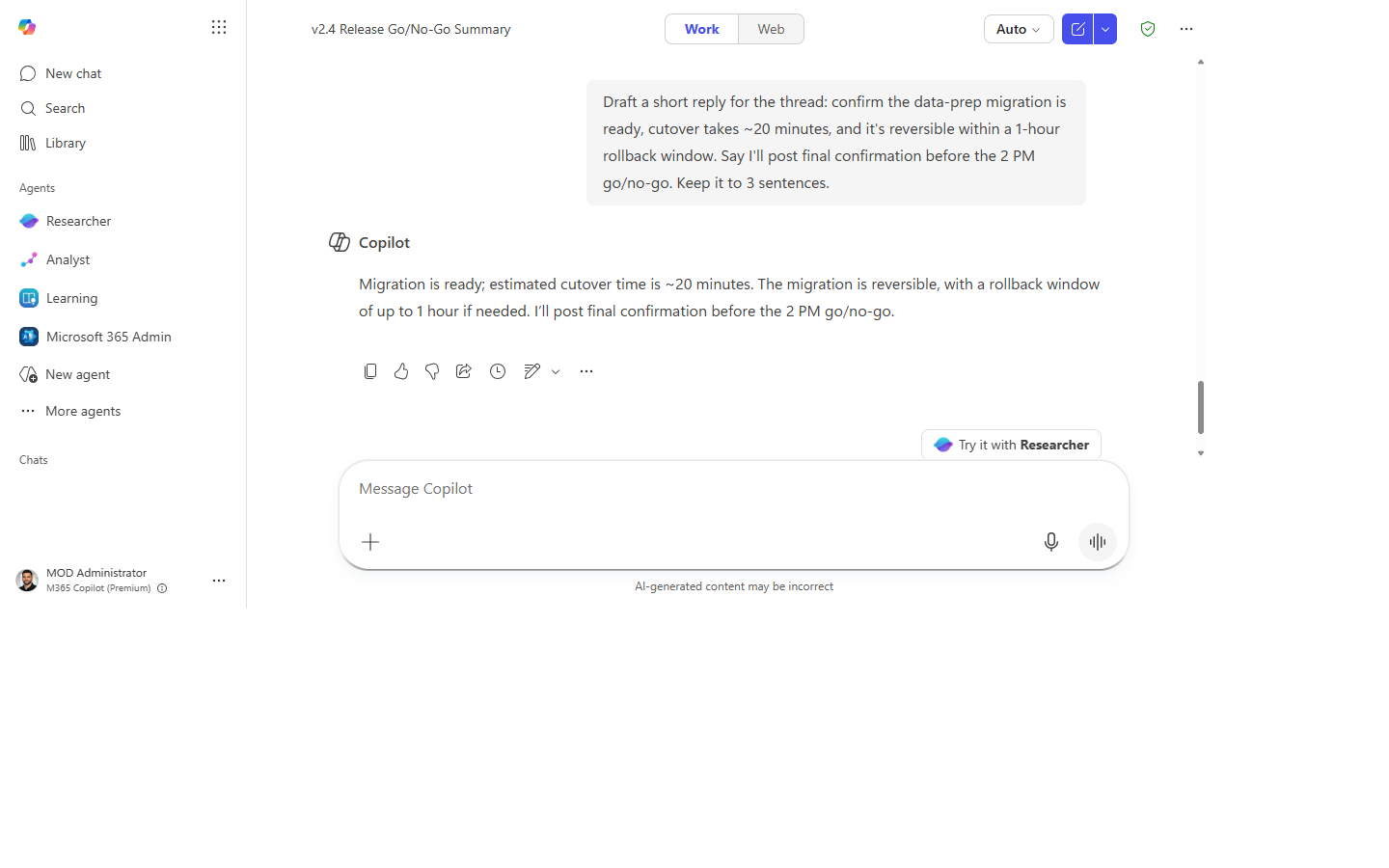
4. Reply drafted. A reply taking the data-prep piece and asking for an extra day.
Make it better
Same thread, sharper questions:
- Just the decisions that were made — skip the back-and-forth.
- Did anyone disagree, and what was their reasoning?
- Who's waiting on me versus who I'm waiting on?
Each is a follow-up in the same chat — Copilot keeps the thread context across the conversation.
📚 Learn more. The in-product Copilot Prompt Gallery has ready-made Teams and Outlook prompts to paste, and the official M365 Copilot Mechanics playlist shows these catch-up moves in the product.
Watch out for
- It only reads the thread you're in. Context that lives in a side DM, a linked doc, or someone's head won't be there. If the summary feels thin, the missing piece is probably elsewhere.
- Don't commit to a date someone else set without checking. Copilot reports the deadline it found — confirm it's real and achievable before you reply "yes."
- Long threads compress nuance. For anything sensitive or contested, open the original messages rather than acting on the summary alone.
Where this leads (the ramp)
Catching yourself up is step one. The next rung is letting an agent catch you up automatically — no prompt, no thread-opening. Stage 2's Facilitator does exactly that for meetings: it generates the recap and the follow-ups on its own. You're learning by hand what an agent will soon do hands-free.
Next: First-Party Agents → Auto-recap every meeting with Facilitator
Related
- Chat → Turn a meeting into tracked follow-ups — the Stage 1 flagship
- Chat → Draft a status update from your week's activity — sibling daily-driver
- Stage 1 Resources: see
RESOURCES.md→ Copilot Chat
Thanks — glad it helped. Spotted something to improve anyway? Suggest it →
Sorry this didn't land. Tell us what broke → so we can fix that rung of the ramp.
Found an issue or want to suggest an improvement? Open a GitHub issue · Star on GitHub